How to Format Currency
Use Gelacy's currency formatting features to fine-tune how your prices display to customers worldwide. This guide covers everything from display formats to exchange rates, helping you create a seamless shopping experience for each market.
Important
- Gelacy only formats the currencies you convert from your default currency (also known as target currencies). If you want to change how your default currency is displayed or formatted, you'll need to contact Shopify Support.
- Gelacy doesn't automatically change prices or taxes based on a shopper's location. For example, if you want prices in Germany to include VAT and prices in the US to exclude it, you'll need to configure that in Shopify or another app.
I. Format Currency with Gelacy
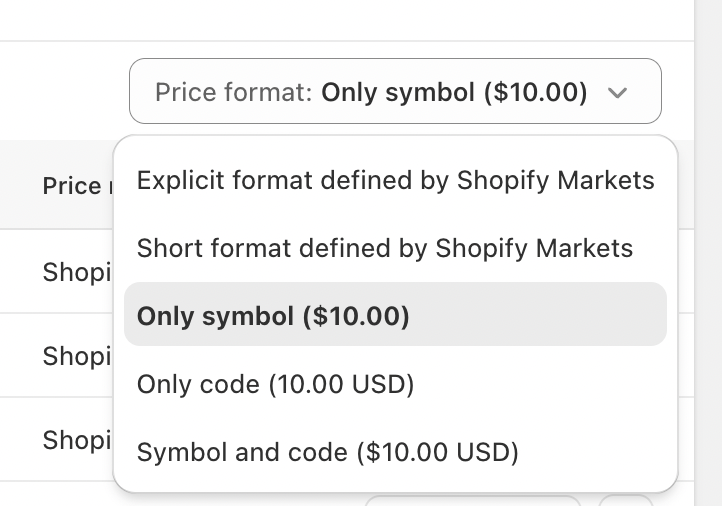
You'll see five main formatting options:
- Explicit format defined by Shopify Markets
- Short format defined by Shopify Markets
- Only symbol (
$10.00) - Only code (
10.00 USD) - Symbol and code (
$10.00 USD)
These options allow you to control how converted currencies are displayed to customers across different markets.
II. Setting Up Price Rounding
To access Price Rounding settings:
- Go to the
Currencymenu. - Select your target currency.
- Click Price Rounding.
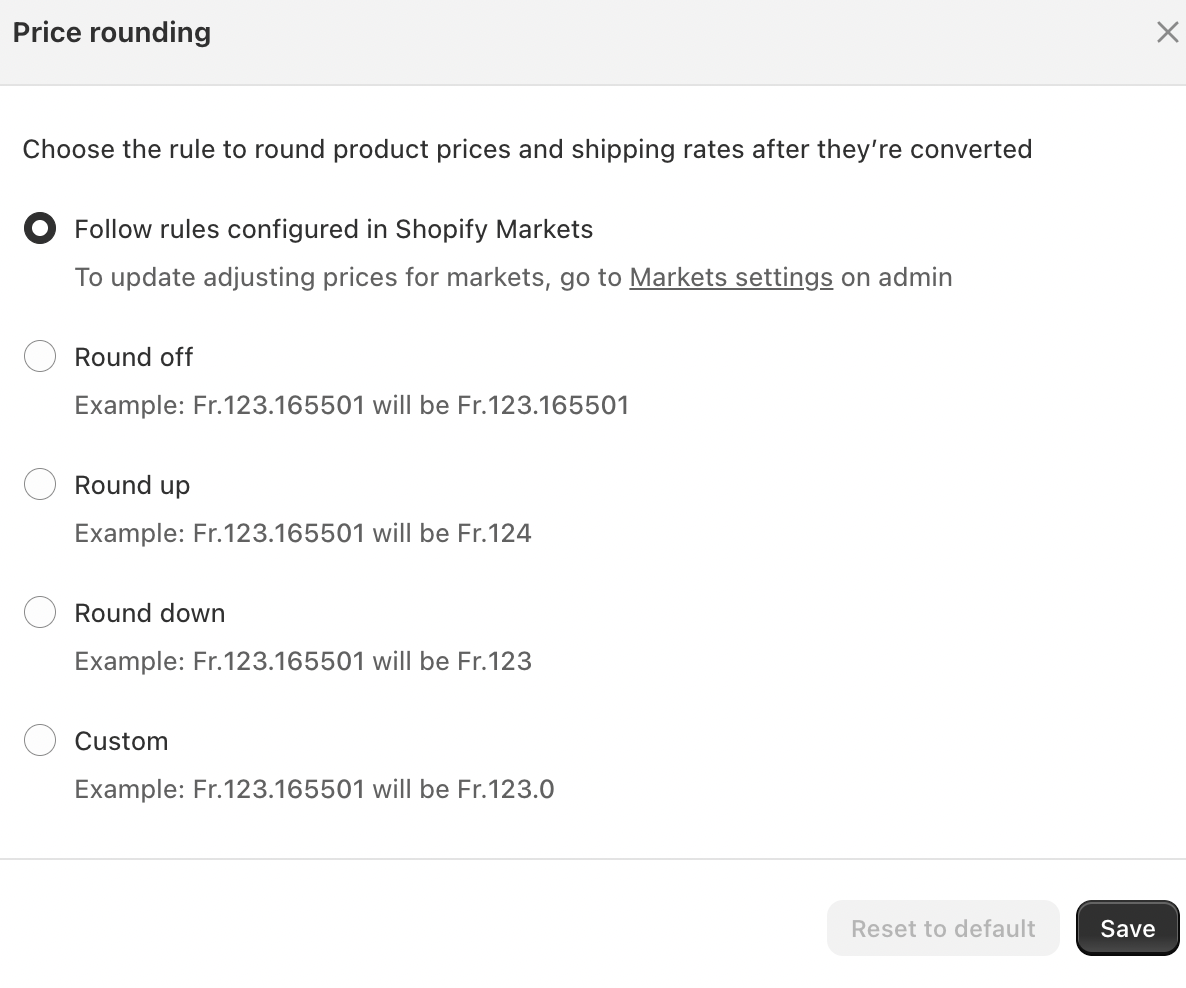
Follow rules configured in Shopify Markets
- Uses the rounding and price adjustment rules already configured in Shopify Markets.
- Recommended if you manage pricing centrally through Shopify.
- Any changes must be made in Shopify Admin → Markets settings.
Round off
- Keeps the converted price as-is, including decimals.
- Example:
Fr. 123.165501 → Fr. 123.165501
Round up
- Rounds the price up to the nearest whole number.
- Example:
Fr. 123.165501 → Fr. 124
Round down
- Rounds the price down to the nearest whole number.
- Example:
Fr. 123.165501 → Fr. 123
Custom
- Allows custom rounding behavior, such as forcing prices to end in
.99. - Example:
Fr. 123.165501 → Fr. 123.99
If you have questions or need help setting up, feel free to contact our support team at [email protected].