How to Edit Language Flags on Your Language Selector
Customizing the language flags on your store’s language switcher helps create a more personalized and professional experience for international visitors. GLC makes it simple to adjust the flags so they accurately represent each language and align with your brand identity.
Steps to Customize Your Language Flags
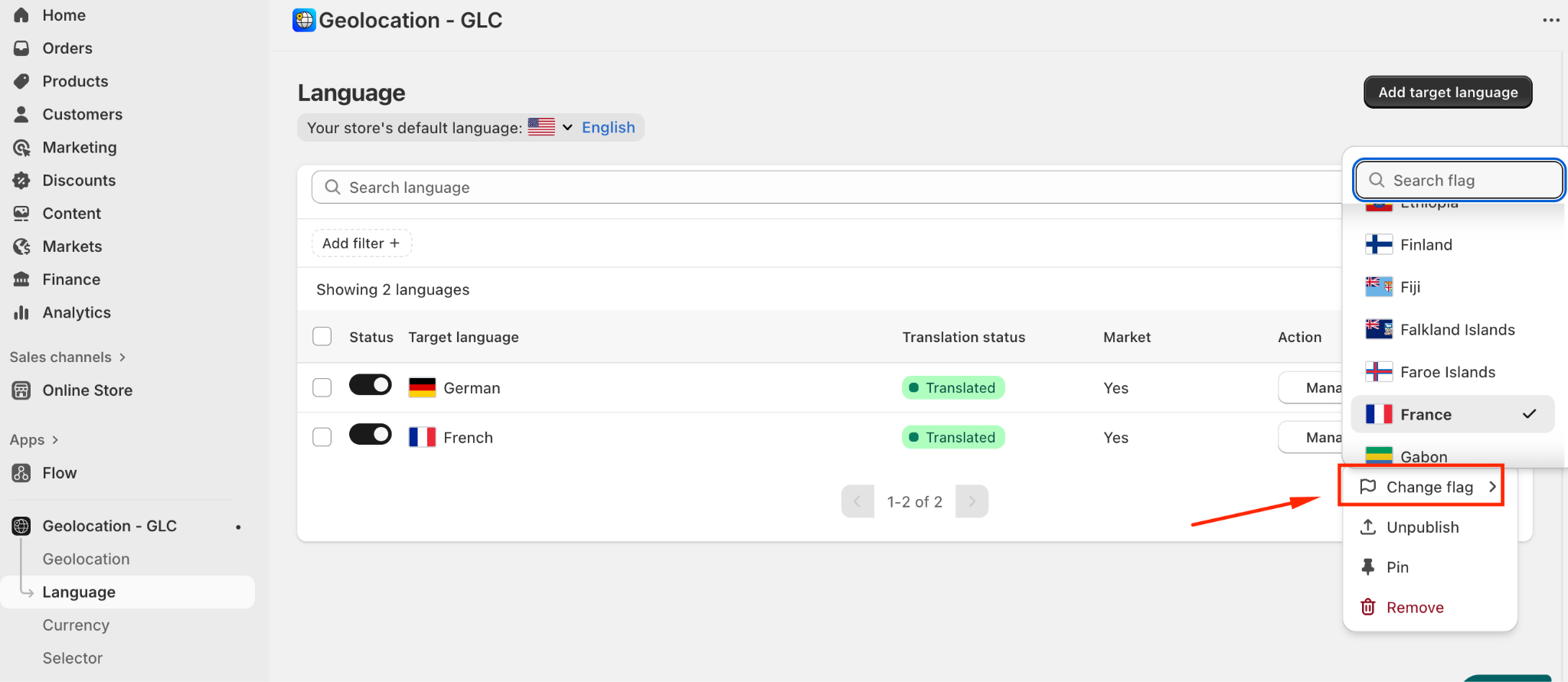
Step 1: Navigate to Language
Navigate to "Language" in your GLC dashboard.
Step 2: Open the Language Options
Click the three dots next to the language you want to edit.
Step 3: Change the Flag
Select "Change Flag".
Step 4: Choose a New Flag
Choose the flag that best represents the language or country.
By customizing your language switcher, you ensure that your multilingual store is visually consistent, intuitive, and welcoming for visitors from around the world. These small adjustments can significantly enhance user experience and help your international customers navigate your store with ease.
If you need further guidance or have any questions, don't hesitate to reach out to our support team through email us at [email protected]