How to Remove or Unpublish Target Languages in GLC
This guide is designed to help you personally manage the languages on your Shopify store with GLC. Whether you want to remove or unpublished specific target languages, understanding the difference between these two options will allow you to maintain a smooth and seamless shopping experience for your customers.
1. REMOVING THE TARGET LANGUAGE
If you want to completely remove a specific language from your Shopify store using GLC, follow these simple steps:
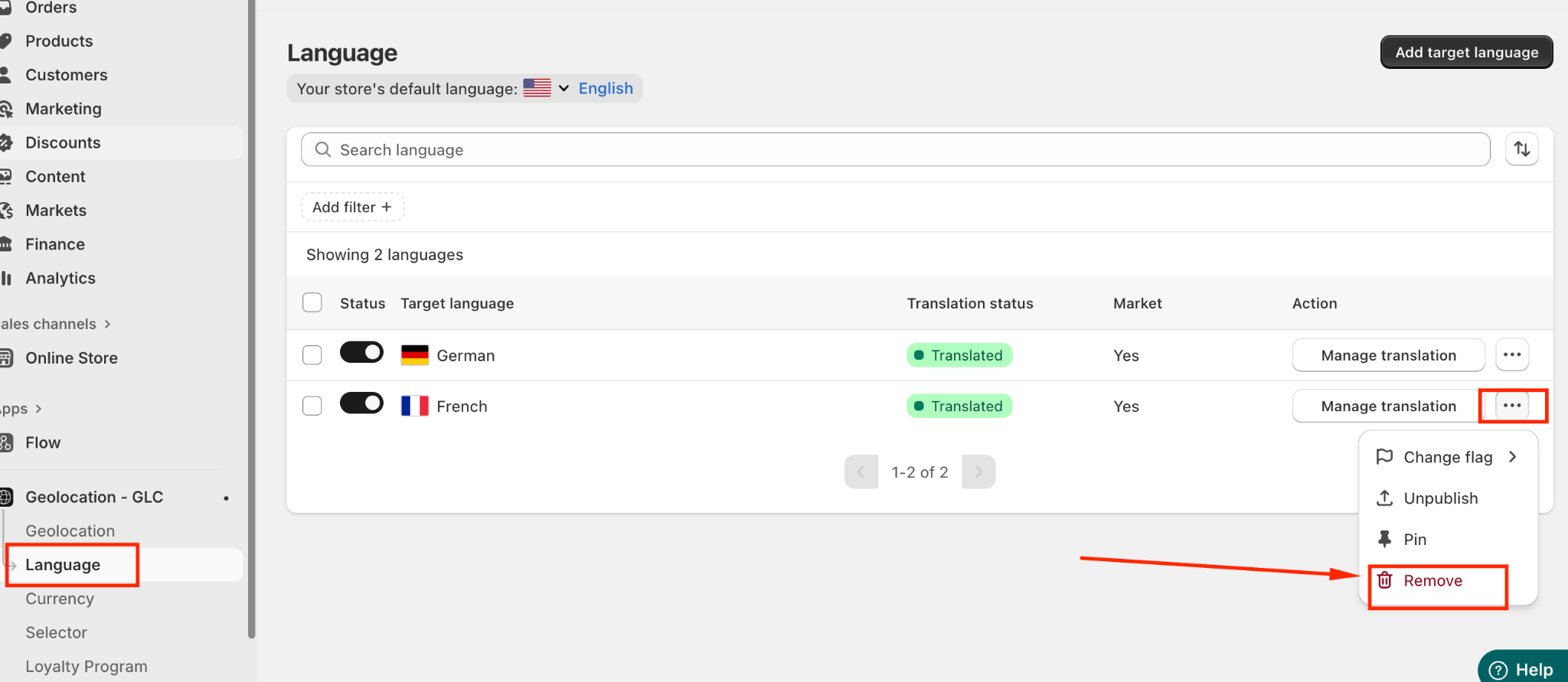
Step 1: Navigate to Language
Navigate to "Language" in your GLC dashboard.
Step 2: Open the Language Options
Click the three dots next to the language you want to remove.
Step 3: Remove the Language
Select "Remove" from the dropdown menu.
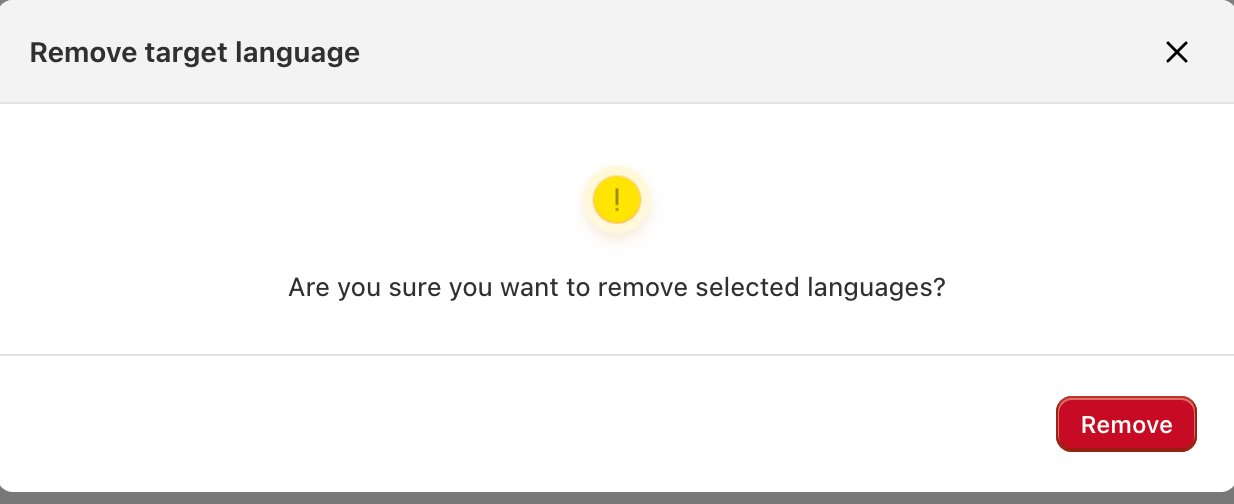
Step 4: Confirm Removal
Confirm your choice to permanently remove the target language from your store.
2. UNPUBLISHED THE TARGET LANGUAGE
If you want to temporarily hide a language from your store without removing it entirely, you can unpublished it. This ensures the language is not visible in the language selector but keeps all translations intact for future use.
To unpublished a target language:
Step 1: Navigate to Language
Navigate to "Language" in your GLC dashboard.
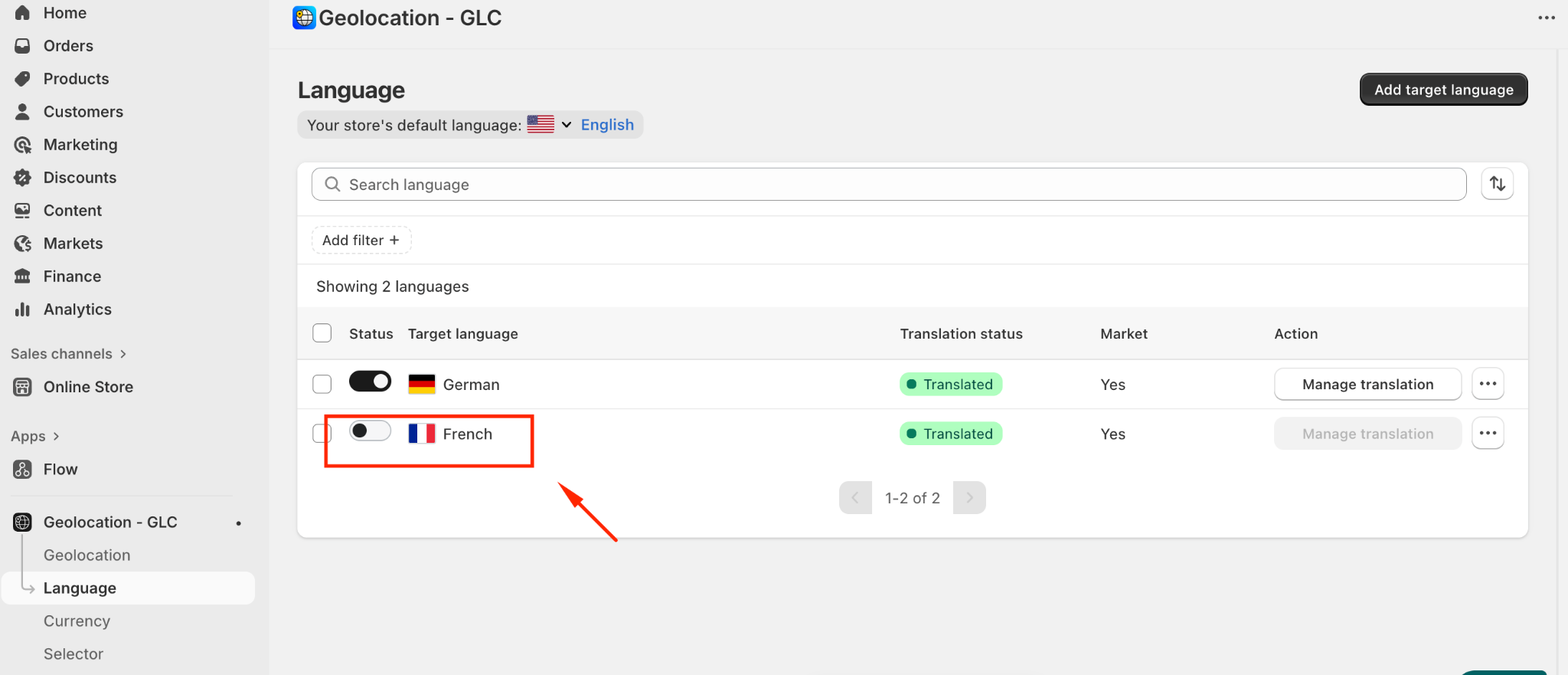
Step 2: Select the Language
Select the language you wish to hide.
Step 3: Unpublish the Language
Turn the toggle off to unpublished the language.
Once unpublished, this language will no longer appear in the selector for customers, but you can easily republish it whenever needed.
3. REMOVING/ UNPUBLISH/ PUBLISHED THE TARGET LANGUAGE IN BULK
If you’ve added multiple target languages to your store and want to published, unpublished, or remove them in bulk, GLC makes it quick and easy to manage.
To perform bulk actions:
Step 1: Navigate to Language
Navigate to "Language" in your GLC dashboard.
Step 2: Select Languages
Select all the target languages you wish to manage.
Step 3: Choose a Bulk Action
Choose the action that matches your needs:
- Set as Published - make all selected languages visible in the language selector.
- Set as Unpublished - hide the selected languages without deleting them.
- Remove - permanently delete the selected languages from your store.
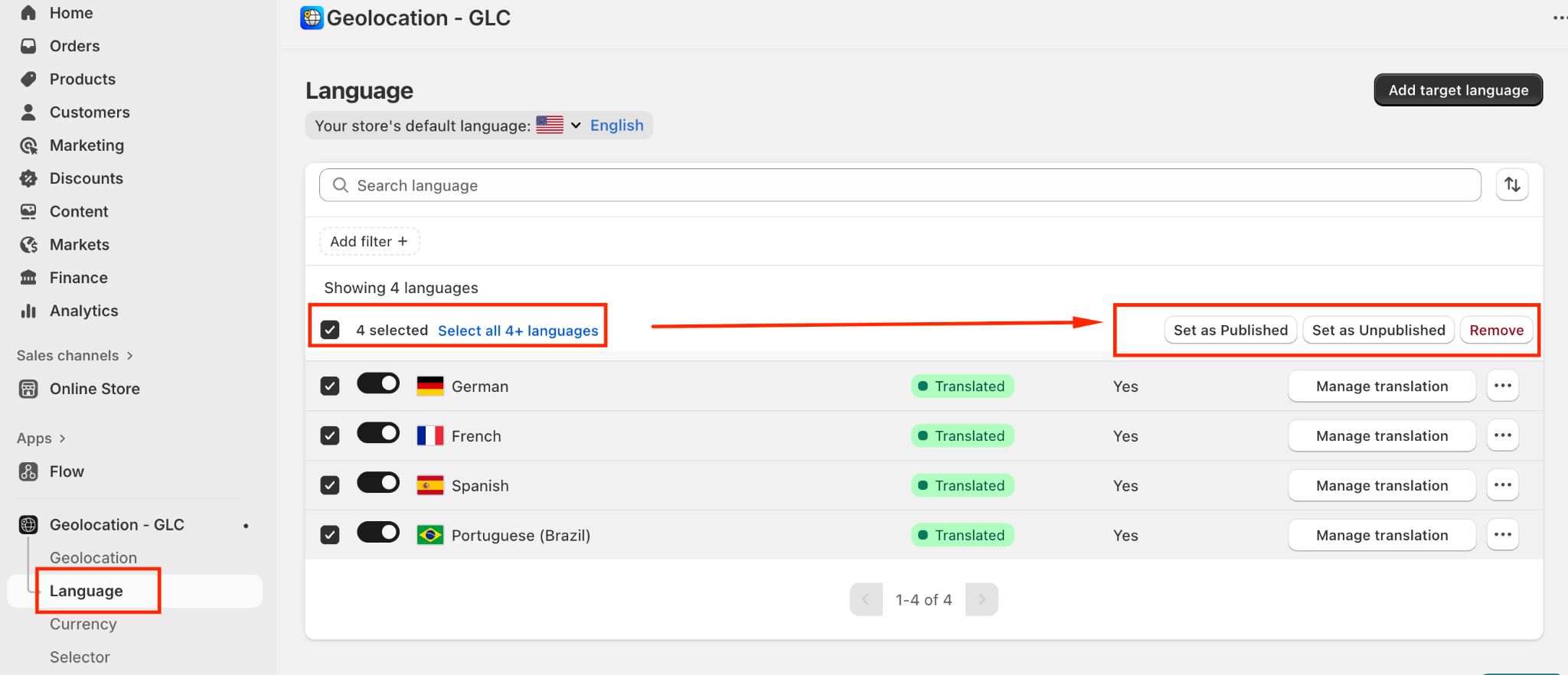
Using bulk management helps you efficiently handle multiple languages at once, saving time while keeping your store organized and up to date.
If you need further guidance or have any questions, don't hesitate to reach out to our support team through email us at [email protected]