How to Translate Checkout Pages with GLC
Providing a multilingual checkout experience is essential for serving international customers and improving conversion rates. With GLC, translating your Shopify checkout page is straightforward, allowing your customers to complete their purchases in their preferred language. This guide will walk you through the steps to set up translations for your checkout page effectively.
Step-by-Step Guide to Translating Your Checkout Page
Follow these steps to translate your checkout page using GLC:
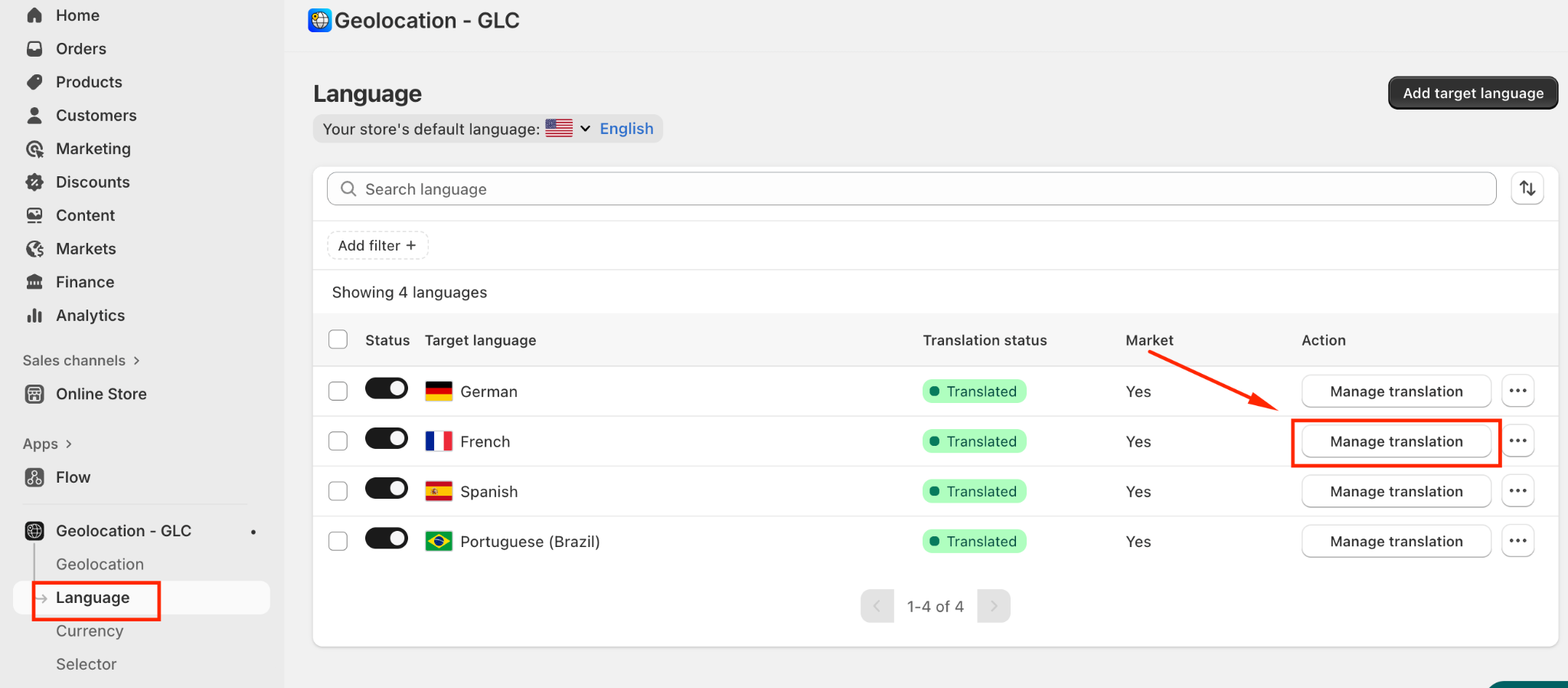
Step 1: Navigate to the Language Section
Navigate to the Language Section
Go to "Language" in the GLC navigation menu → Manage translation
Step 2: Access the Themes Resource
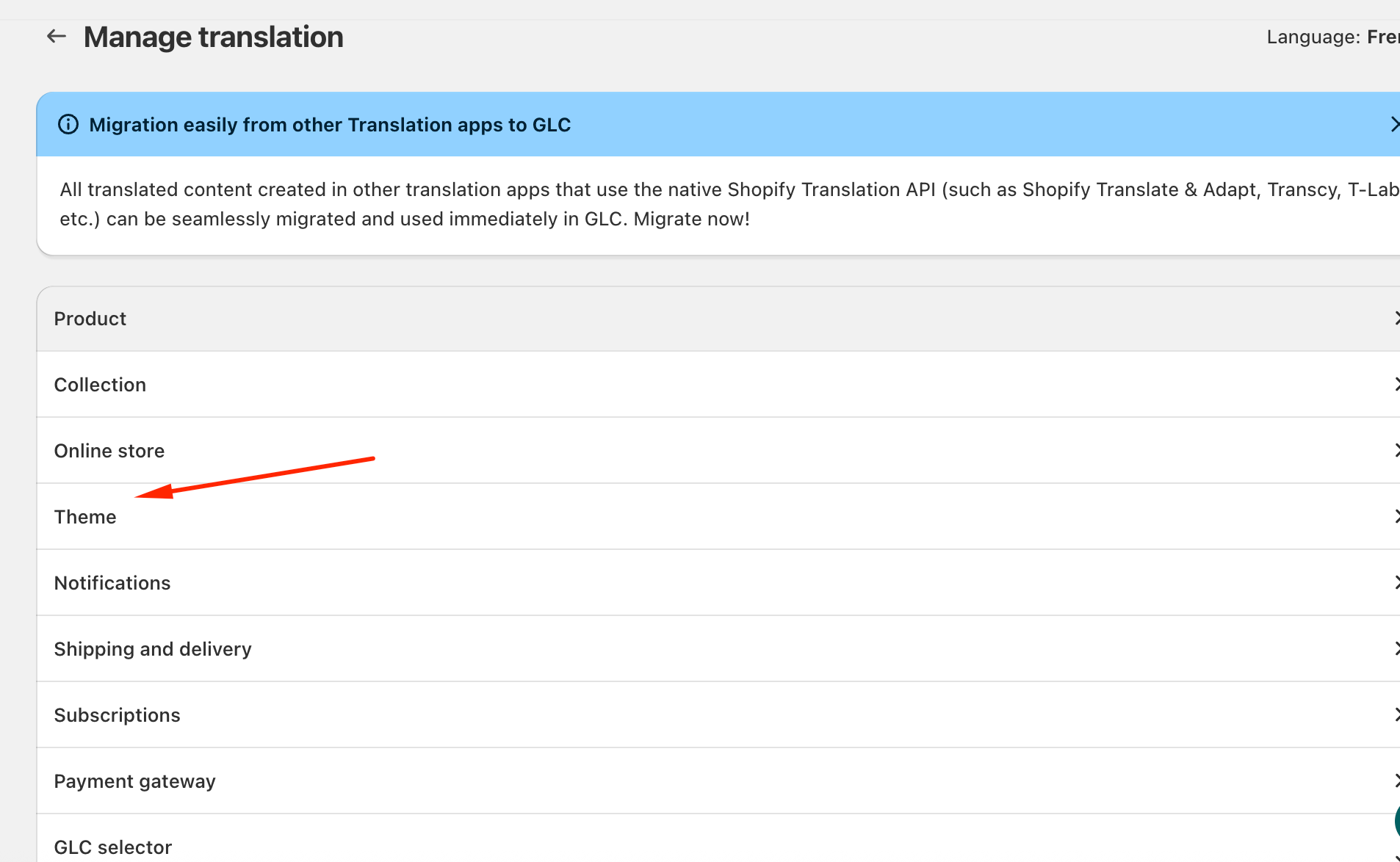
Access the Themes Resource
Scroll down and click on the "Themes" resource to access your store’s theme-related content.
Step 3: Open the Checkout Page Section
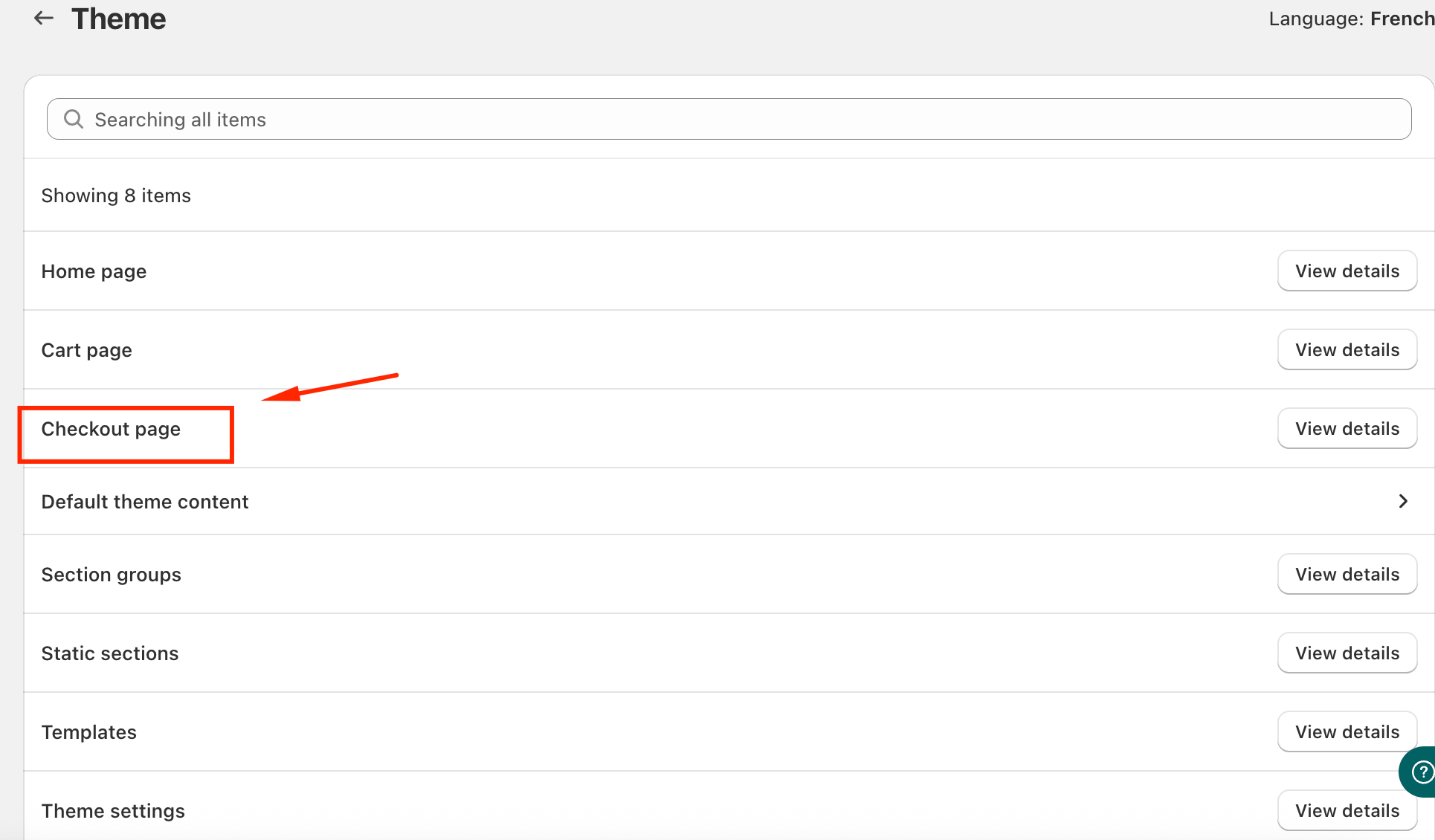
Open the Checkout Page Section
Navigate to the checkout page section where all checkout content is stored.
Step 4: Translate the Content
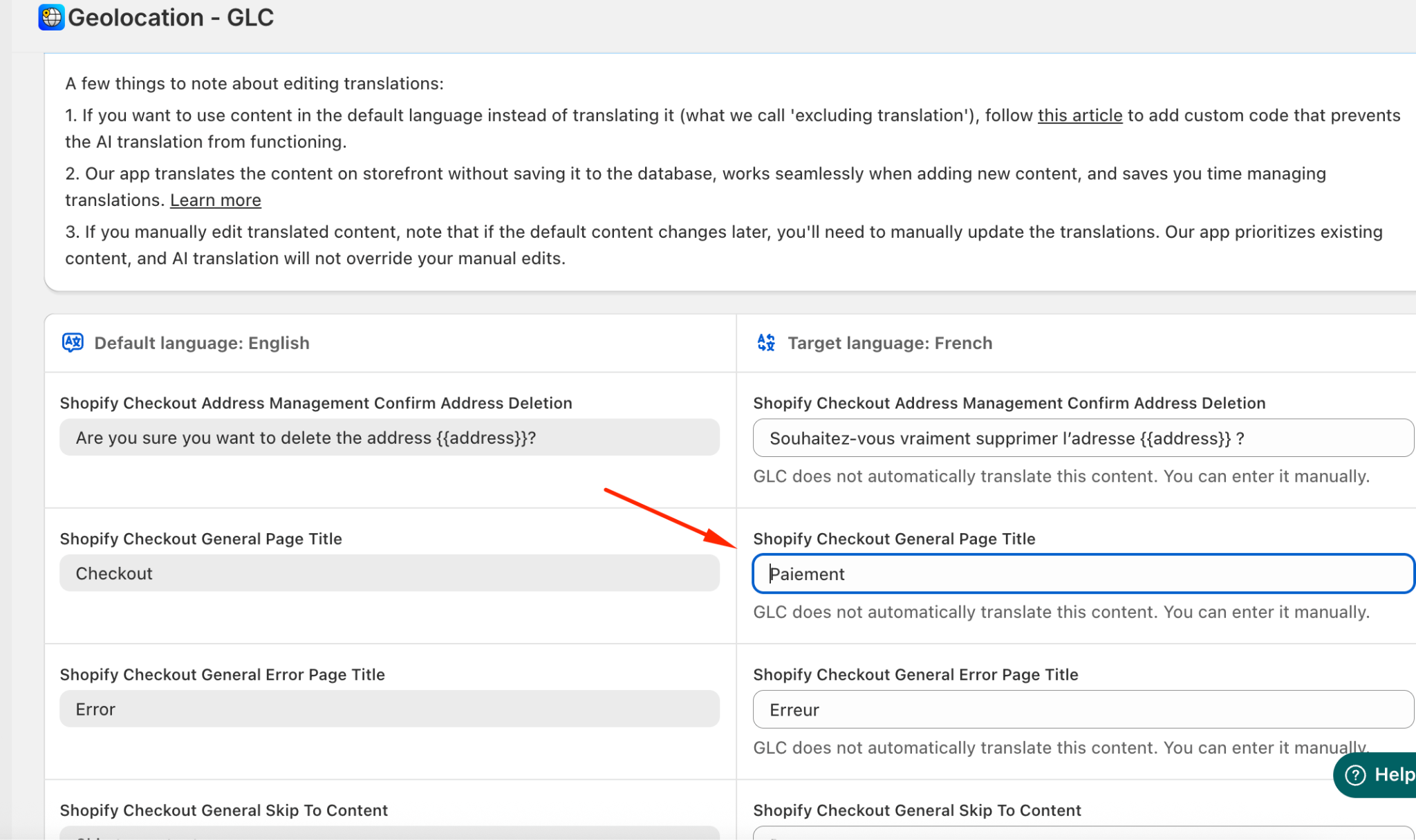
Translate the Content
Translate the text fields as needed to ensure the checkout page is fully localized.
Step 5: Save Your Changes
Save Your Changes
Make sure to save your translations to apply them to your live store.
Important Note About Third-Party Apps
Due to Shopify’s platform limitations, content provided by third-party apps cannot be translated on the checkout page. This restriction comes from Shopify itself and is not related to GLC. Only content managed directly through your theme or Shopify settings can be translated using GLC.
If you need further guidance or have any questions, don't hesitate to reach out to our support team through email us at [email protected]