How to Translate Images in Gelacy
If your storefront images contain text in your default language and you want to show different images for each target language, Transtore’s Image Translation feature allows you to replace images per language easily.
This is useful for banners, promotional images, collection visuals, or any image that includes localized text.
I. What images can be translated?
Homepage banners, logos, and other site images. You can find these images in Shopify Admin → Content → Files.
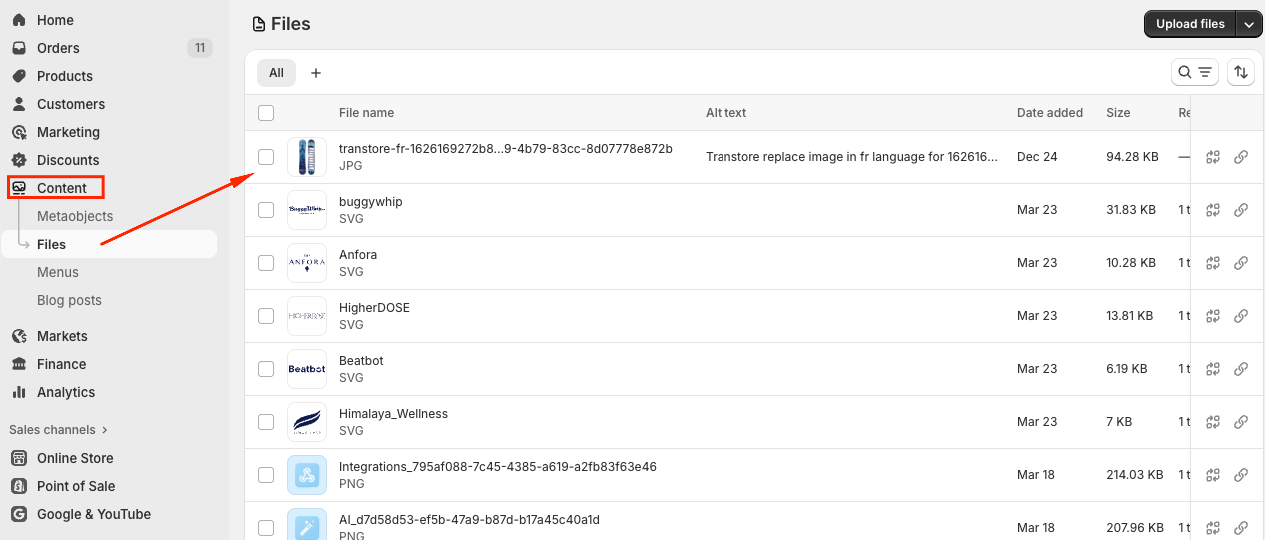
Image requirements:
- Supported formats: .webp, .png, .jpg, .gif
- Maximum size: 5 MB per image
- Only one target image per original image (you cannot upload multiple images for the same original image)
II. Step-by-step: How to replace images by language
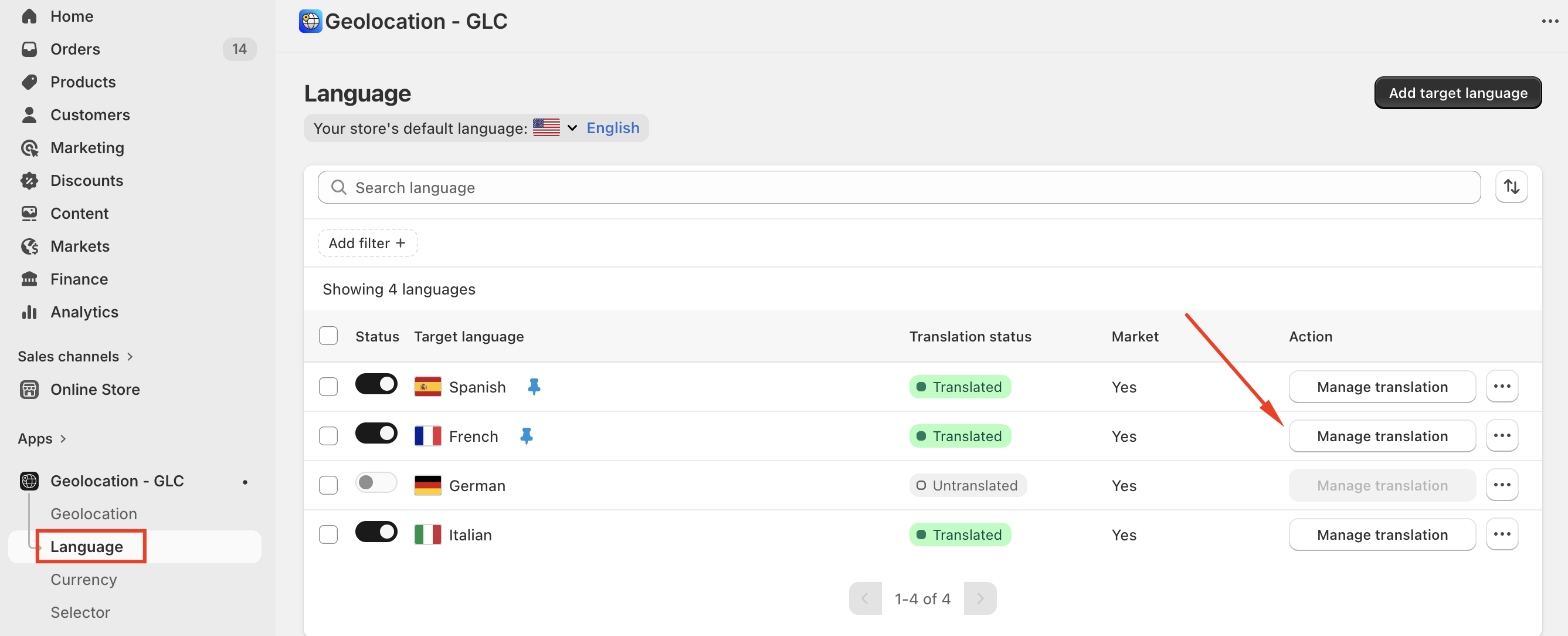
Step 1: Go to Language and select Manage language
Go to Language section in Transtore -> Select Manage language:
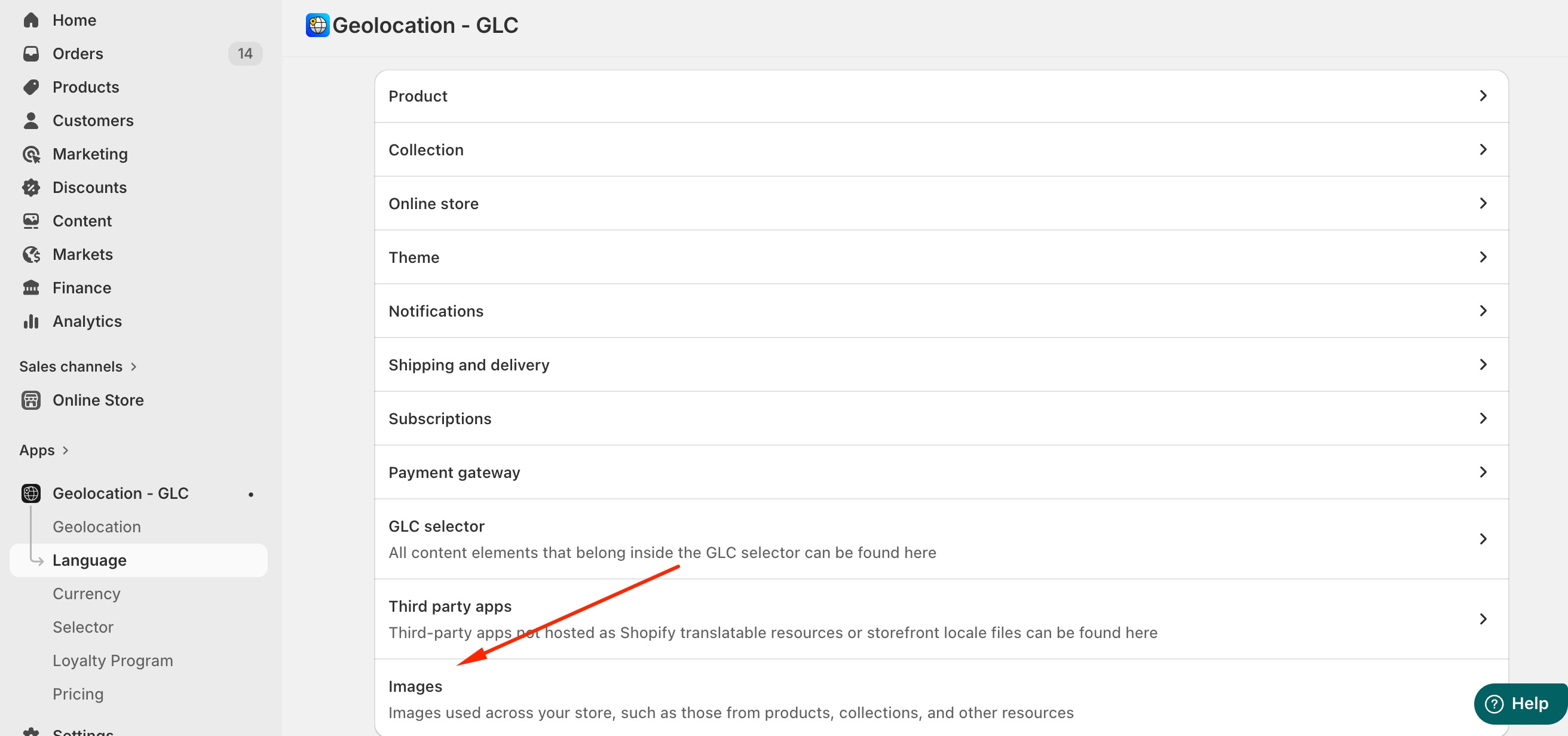
Step 2: Select Images
Select Images:
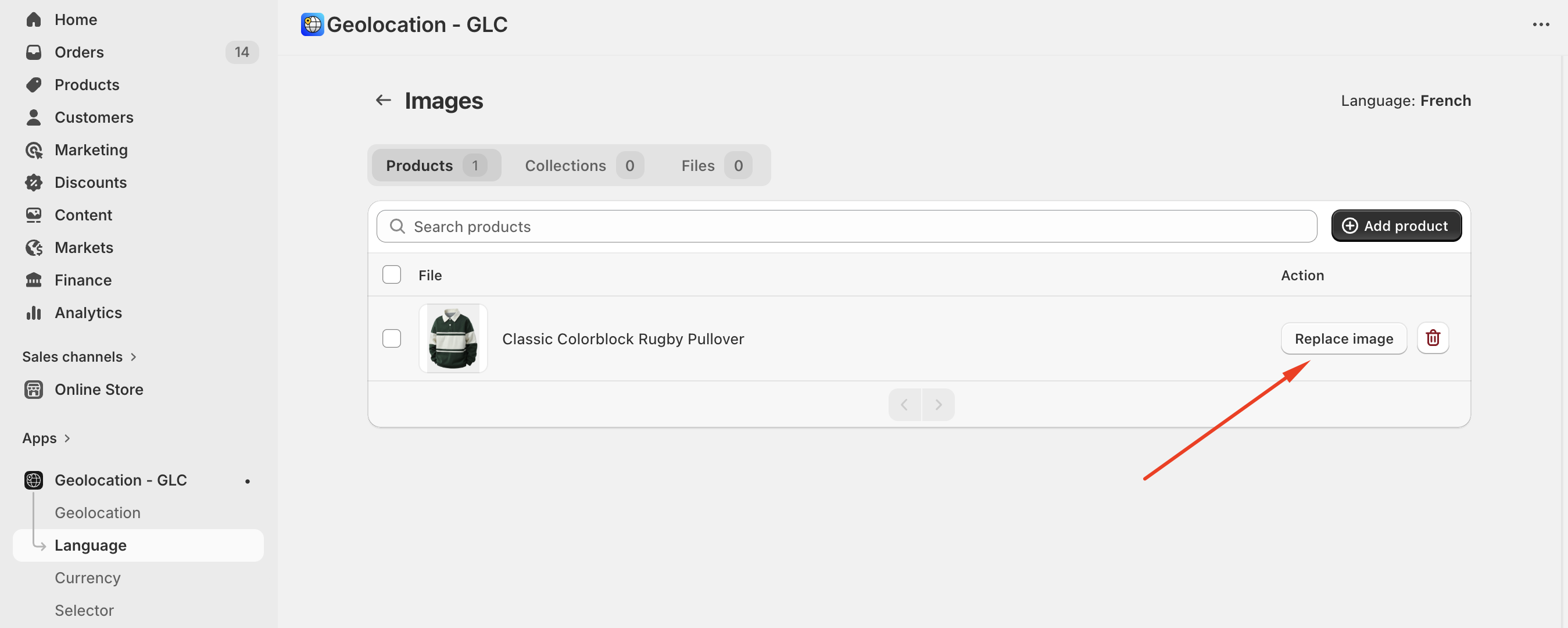
Step 3: Replace the image
Select “Replace image” to the one you want to replace (Use the search bar to find images faster)
Step 4: Upload the target image
Upload an image from your device and then click “Upload”
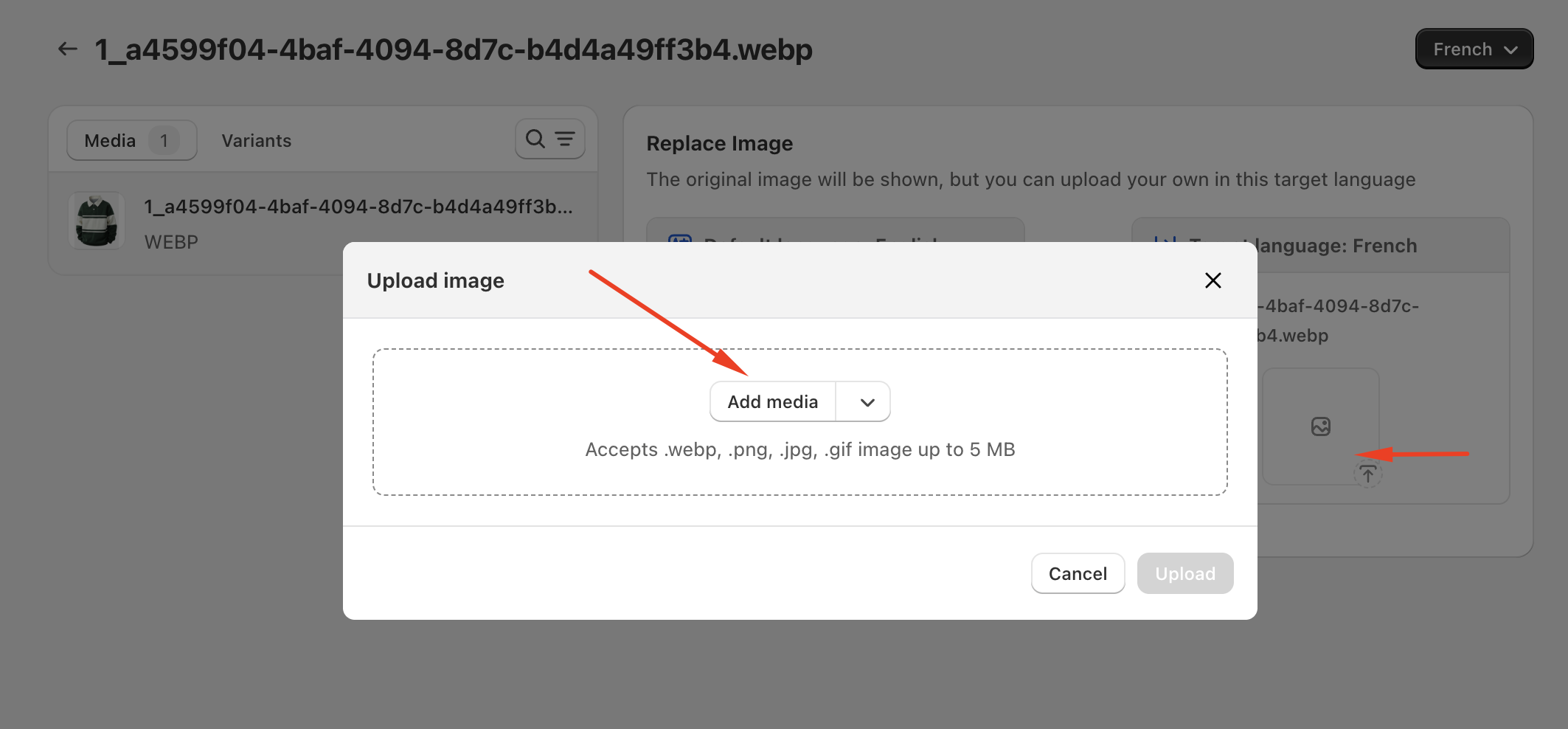
The image is automatically saved after you upload it. You can double-check how it displays on the storefront by switching to the target language.
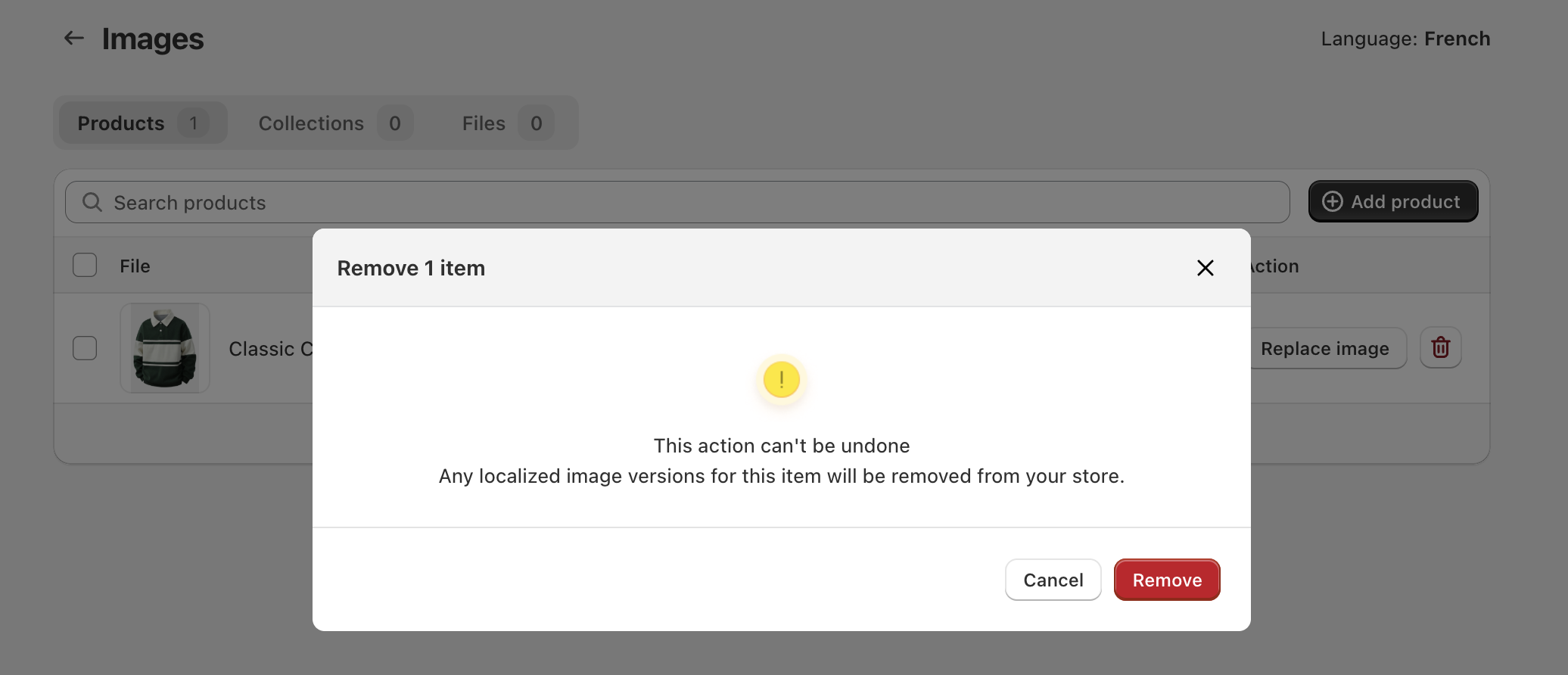
Additionally, if you want to remove the uploaded image, please select and the “Remove” button and confim to delete it:
Important notes
- Image layout and positioning are controlled by your theme
- If no target image is added for a language, the original image will continue to display on the storefront
If you need further assistance, please feel free to contact us at [email protected].