How can I give GLC Support access to my store?
If GLC Support needs to check your Shopify settings or help with your theme, you can grant access by approving a collaborator request or sending a staff invitation.
Option 1. Approve a collaborator request
-
In your Shopify admin, go to Settings → Users → Security. Depending on your store setup, you may see Users & permissions before Security.
-
Under Collaborators, copy your 4-digit collaborator request code.
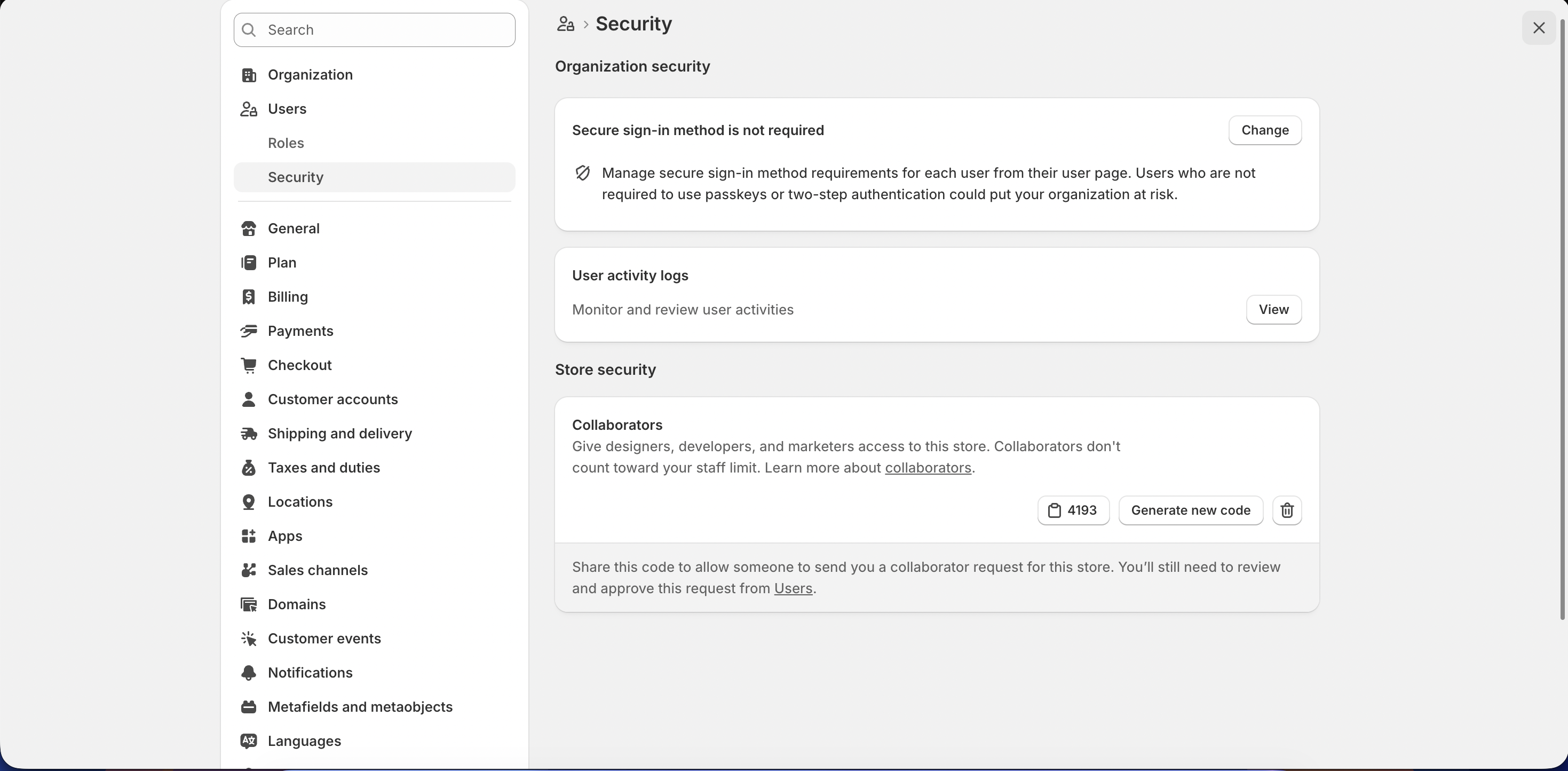
-
Send the code and your
myshopify.comstore domain to us in your support conversation. -
After we submit the request, go to Settings → Users → Requests and open the request from GLC Support.
-
Review the requested permissions and click Accept request.
For more details, see Shopify’s guide to collaborator accounts.
Option 2. Send a staff invitation
If your store is on Shopify’s Basic or Starter plan, use collaborator access.
- In your Shopify admin, go to Settings → Users and click Add users.
- Under User details, select Admin user.
- In Emails, enter [email protected] and click Add.
- Under Roles or Roles and groups, click Assign and select a role with the permissions needed for your request.
- Review the Permission summary, then click Save to send the invitation.
- Let us know in your support conversation once you’ve sent the invitation so we can accept it.
For plan-specific steps, see Shopify’s guide to inviting an admin user.
Which permissions should I grant?
To embed the GLC Selector in your theme or change its position, grant these permissions with either access method.
| Area | Required access |
|---|---|
| Apps | Geolocation - GLC |
| Online Store | Themes and Edit code |
In your support conversation, tell us which theme to update, where you want the Selector to appear, and whether the change is for desktop, mobile, or both.
For other requests, such as troubleshooting Shopify Markets, we may need additional permissions. We’ll explain which permissions we need and why before asking you to grant them.
If you need help granting access, email us at [email protected].