Set up geolocation
Use Geolocation to recommend or automatically apply a language and currency based on where visitors are browsing from. You can also customize the recommendation modal to match your storefront.
Geolocation requires the GLC app embed. If you see App embed is required, follow the steps in Enable the GLC app embed.
I. Enable Geolocation
Step 1: Open Geolocation
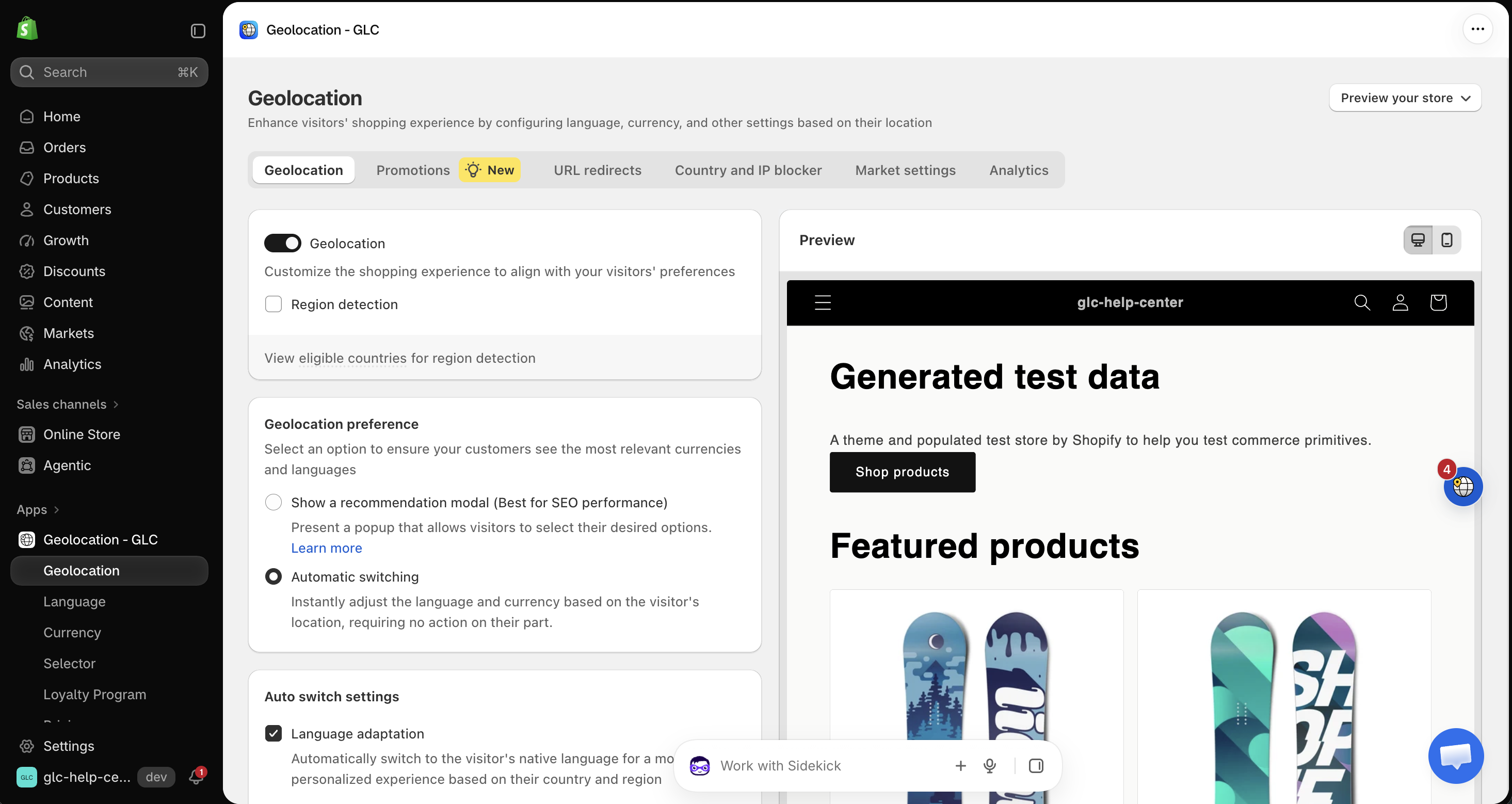
Open Geolocation from the left-hand menu in GLC.
Step 2: Turn on Geolocation
Turn on the Geolocation toggle. GLC will use the visitor's location to show a recommendation or apply changes automatically, depending on your Geolocation preference.
You can turn off Geolocation temporarily to pause location-based recommendations and switching.
Step 3: Turn on Region detection (optional)
Select Region detection to let GLC use the visitor's region, such as a state or province, in addition to their country. Click View eligible countries for region detection to see which countries support it.
Region detection isn't available on every plan. To see what your plan includes, go to Pricing in GLC.
II. Choose your geolocation preference
Use Geolocation preference to choose what happens when a visitor's detected location differs from the current storefront settings.
1. Show a recommendation modal
The modal recommends a shipping country, language, and currency based on the visitor's location. Visitors can review the recommendations and confirm their choices before GLC applies any changes.
2. Automatic switching
GLC can switch the storefront language and currency based on the visitor's location without asking for confirmation.
Under Auto switch settings, choose what GLC adapts:
- Language adaptation switches the storefront language based on the visitor's country and region.
- Currency conversion displays storefront prices in the visitor's local currency.
For more details, see How geolocation works in GLC.
III. Customize the geolocation modal
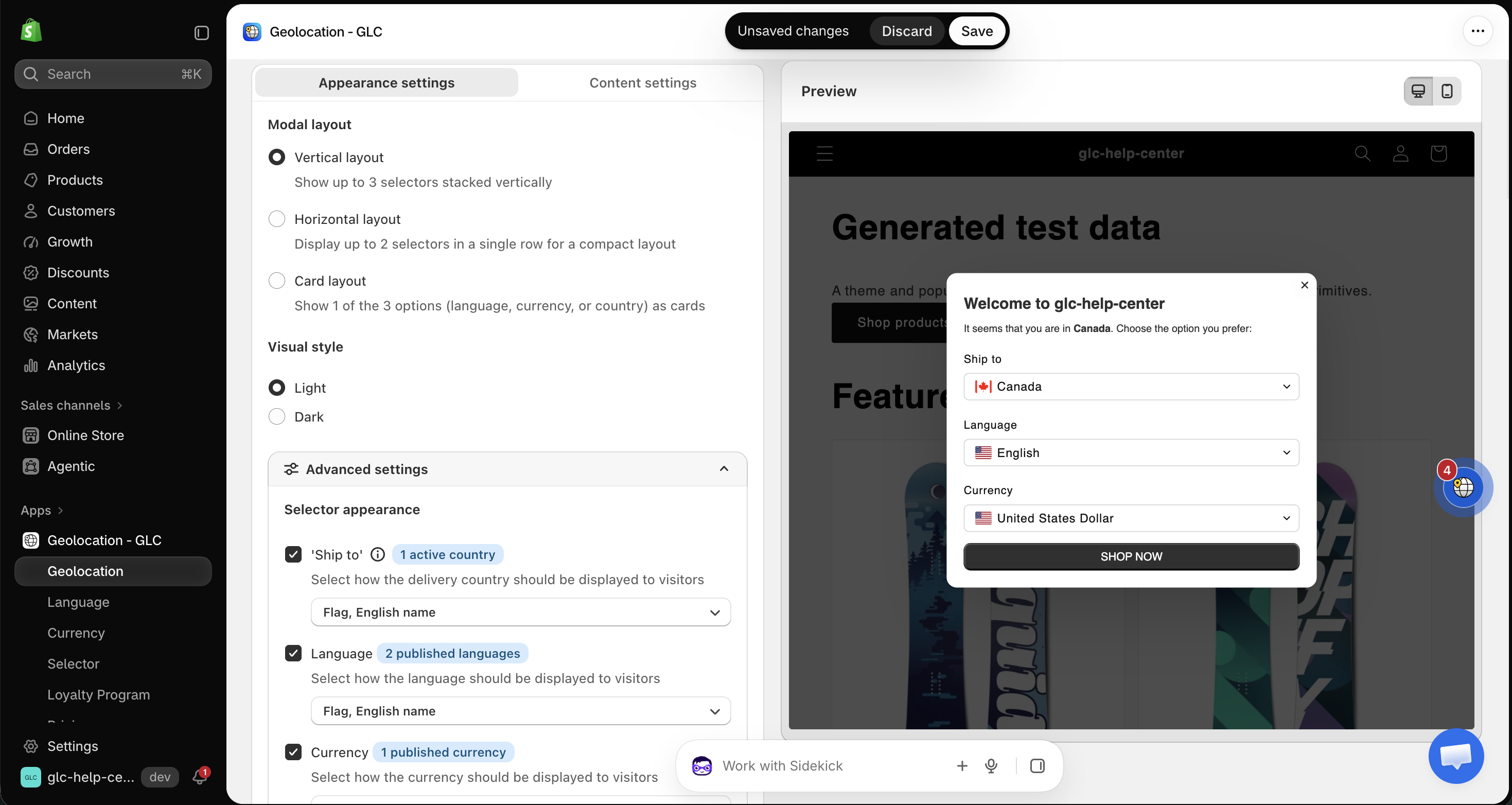
If you use the recommendation modal, scroll down to the modal configuration section. Use Appearance settings to change how the modal looks and Content settings to edit its text. You can review your changes in Preview on the right.
Appearance settings
Modal layout
Choose how the country, language, and currency selectors appear in the modal.
- Vertical layout displays up to three selectors stacked vertically.
- Horizontal layout displays up to two selectors in a single row.
- Card layout displays one selector at a time, with its choices shown as selectable cards.
Visual style
Choose Light or Dark to match your storefront.
Advanced settings
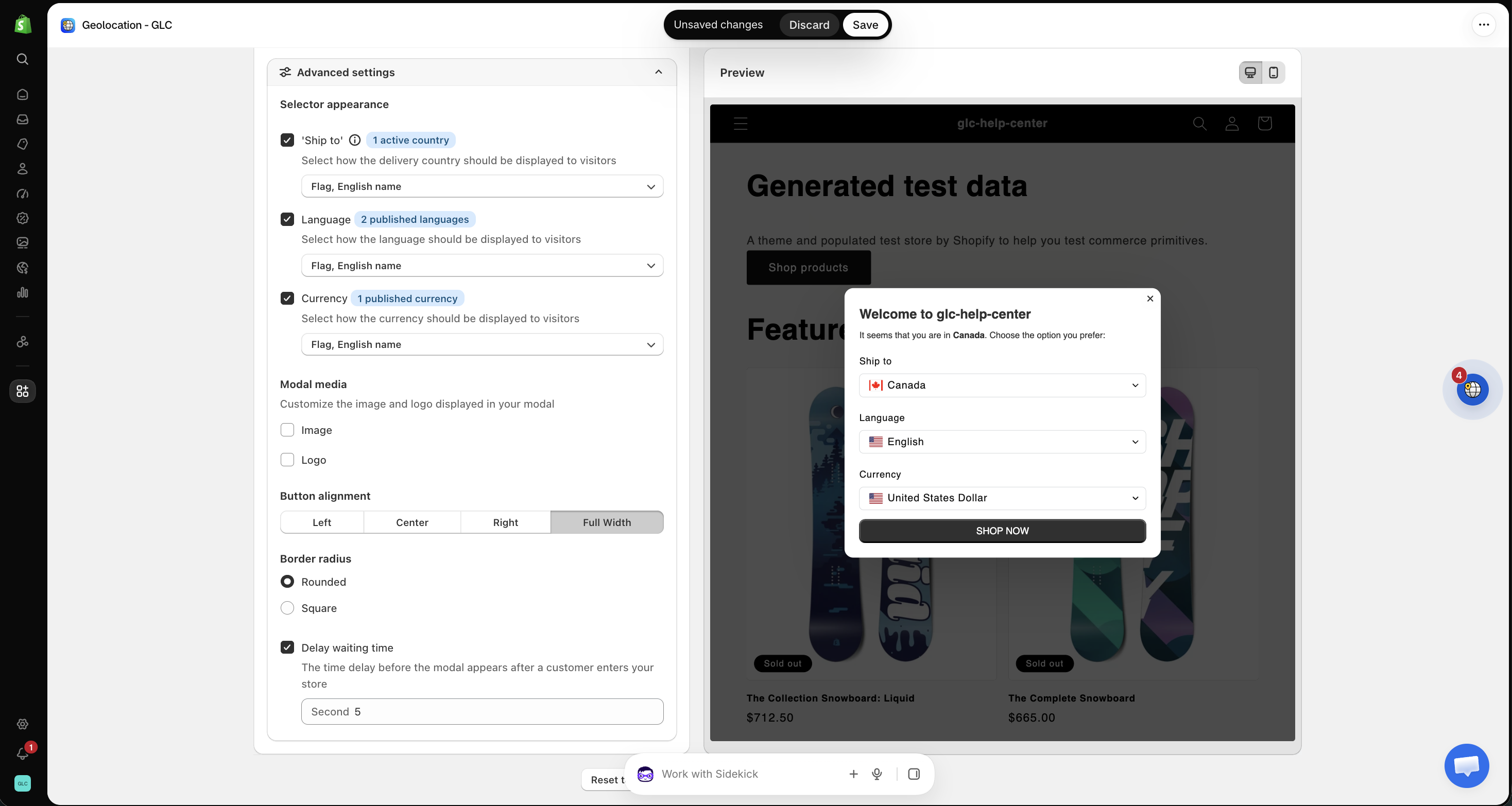
- Selector appearance controls which selectors appear (Ship to, Language, and Currency) and how options are displayed, such as a flag, the English name, or both. Ship to lists the active countries in your store. Language and Currency show the languages and currencies available to shoppers.
- Modal media lets you add an Image or your store Logo. For a logo, choose Top left, Top center, or Top right. Supported formats are
.webp,.png,.jpg, and.gif, with a maximum file size of 5 MB. A square image is recommended. - Button alignment lets you choose Left, Center, Right, or Full Width. Full Width is recommended for mobile.
- Border radius lets you choose Rounded or Square corners.
- Delay waiting time sets how long GLC waits before showing the modal. For example, set it to five seconds to give visitors time to see the page first.
Content settings
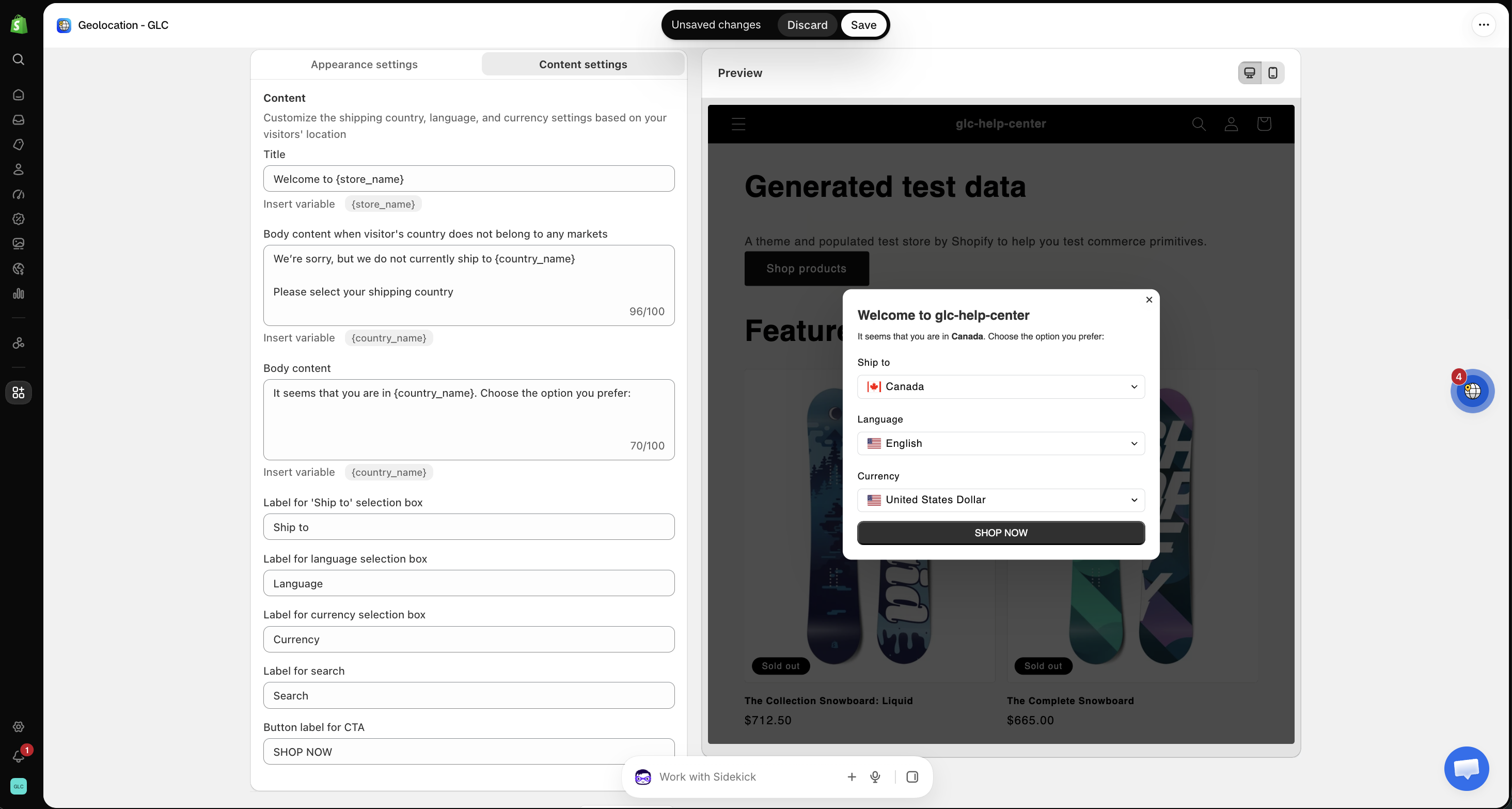
- Title sets the modal heading and supports the
{store_name}variable. - Body content when visitor's country does not belong to any markets sets the message shown when the visitor's country is outside your configured markets. It supports the
{country_name}variable. - Body content sets the message shown when the visitor's country belongs to one of your markets. It supports the
{country_name}variable. - Button label for CTA sets the text on the button visitors click to confirm their choices.
Example modal text
Title
Welcome to {store_name}
Body content when the visitor's country is outside your markets
We don't currently ship to {country_name}.
Please select your shipping country.
Body content when the visitor's country belongs to one of your markets
It looks like you're browsing from {country_name}.
Choose your preferred shopping options below.
IV. Save and preview
Click Save at the top of the page. Then click Preview your store in the top-right corner of the Geolocation page to review how your settings appear on the storefront.
If you're not sure which preference to choose, or the modal doesn't look the way you want after saving, email us at [email protected]. We'll help you set up Geolocation for your store.