Activate GLC Selector on your store through Theme Editor
When you’re ready to present the GLC language and currency switcher to your customers, enabling it is simple. Just open your theme’s Theme Editor in Shopify and toggle on the app embed block - that’s all it takes to make the switcher visible on your storefront.
GLC’s switcher is compatible with all modern Shopify themes, this approach requires no coding and works out-of-the-box. Once published, visitors will enjoy a smooth, localized shopping experience.
I. Understanding App Embed Blocks
App embed blocks let Shopify apps integrate features directly into your store’s design. They act like building blocks, adding functionality-such as product reviews, ratings, or dynamic pricing-without complex coding.
For example, GLC uses app embed blocks to add a multilingual and multi-currency selector, making it easy for customers to shop in their preferred language and currency.
These blocks are easily managed through Shopify’s Theme Editor, allowing you to add, remove, or customize them to fit your store’s design and functionality needs.
II. Quick Activation from GLC App
Step 1: To enable the selector
To enable the selector, navigate to “Selector” → App Embed.
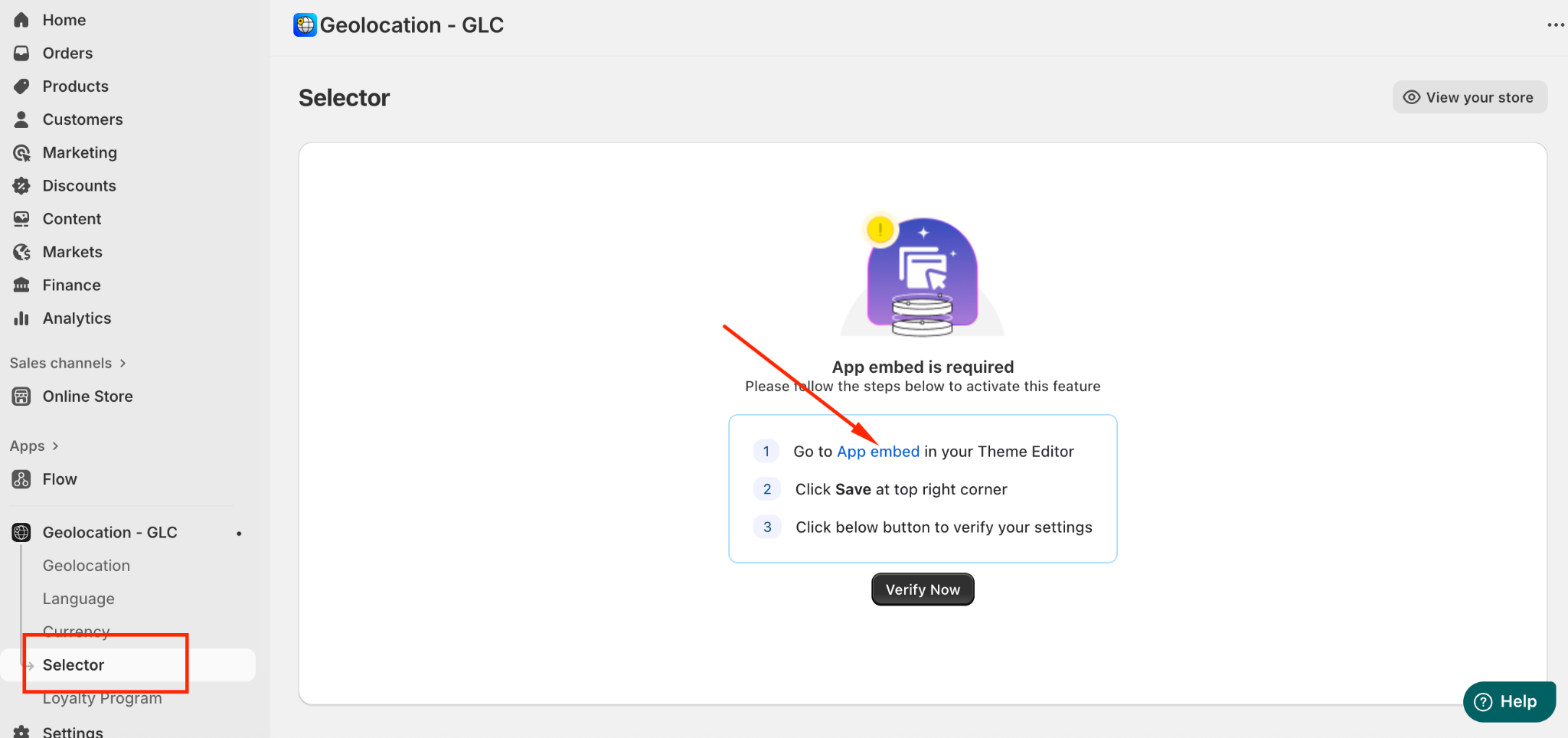
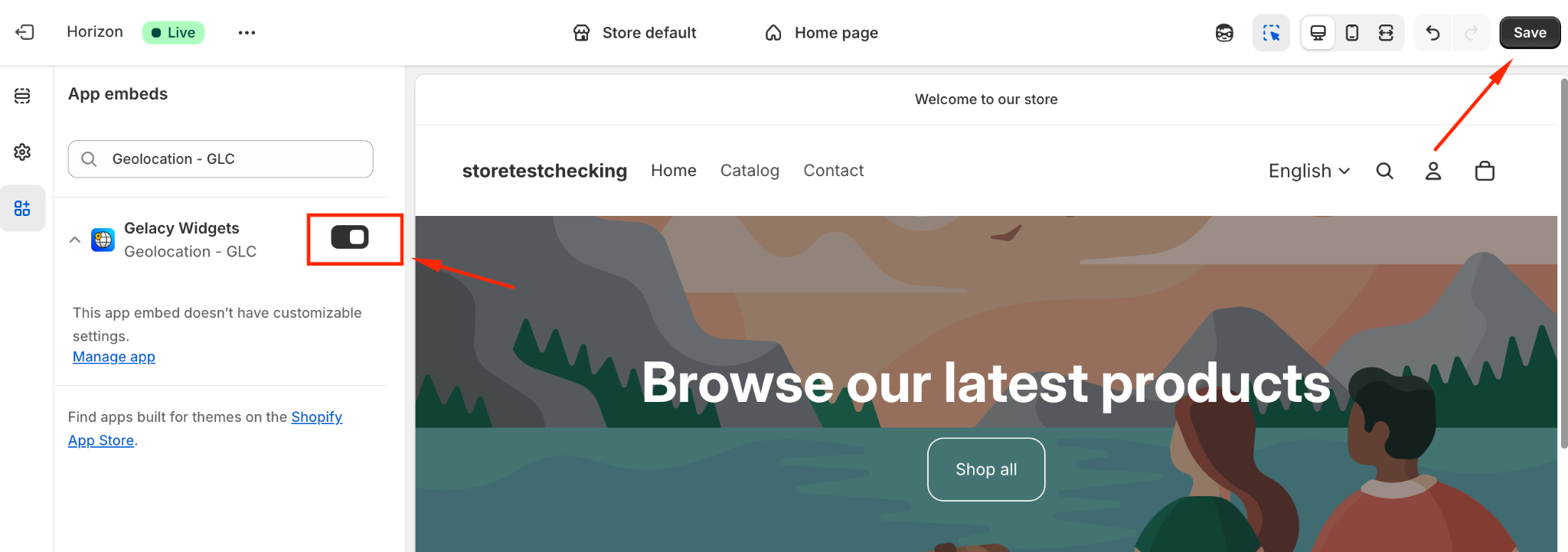
Step 2: Turn on Gelacy app
Turn on Gelacy app and click Save to apply your changes.
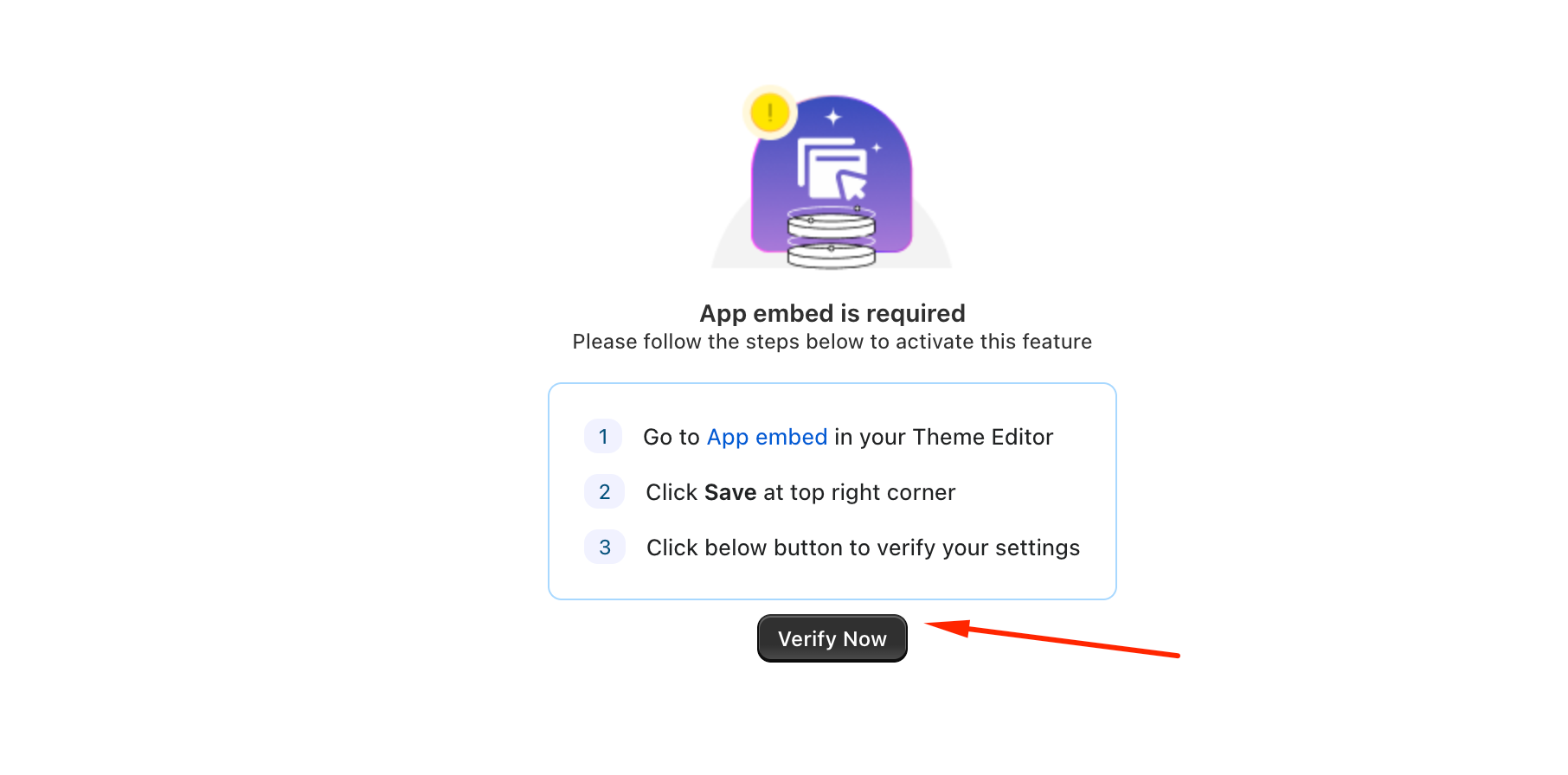
Step 3: Verify the activation
Once the activation is complete, click Verify to ensure the selector is working properly on your store.
III. Manual Activation Steps
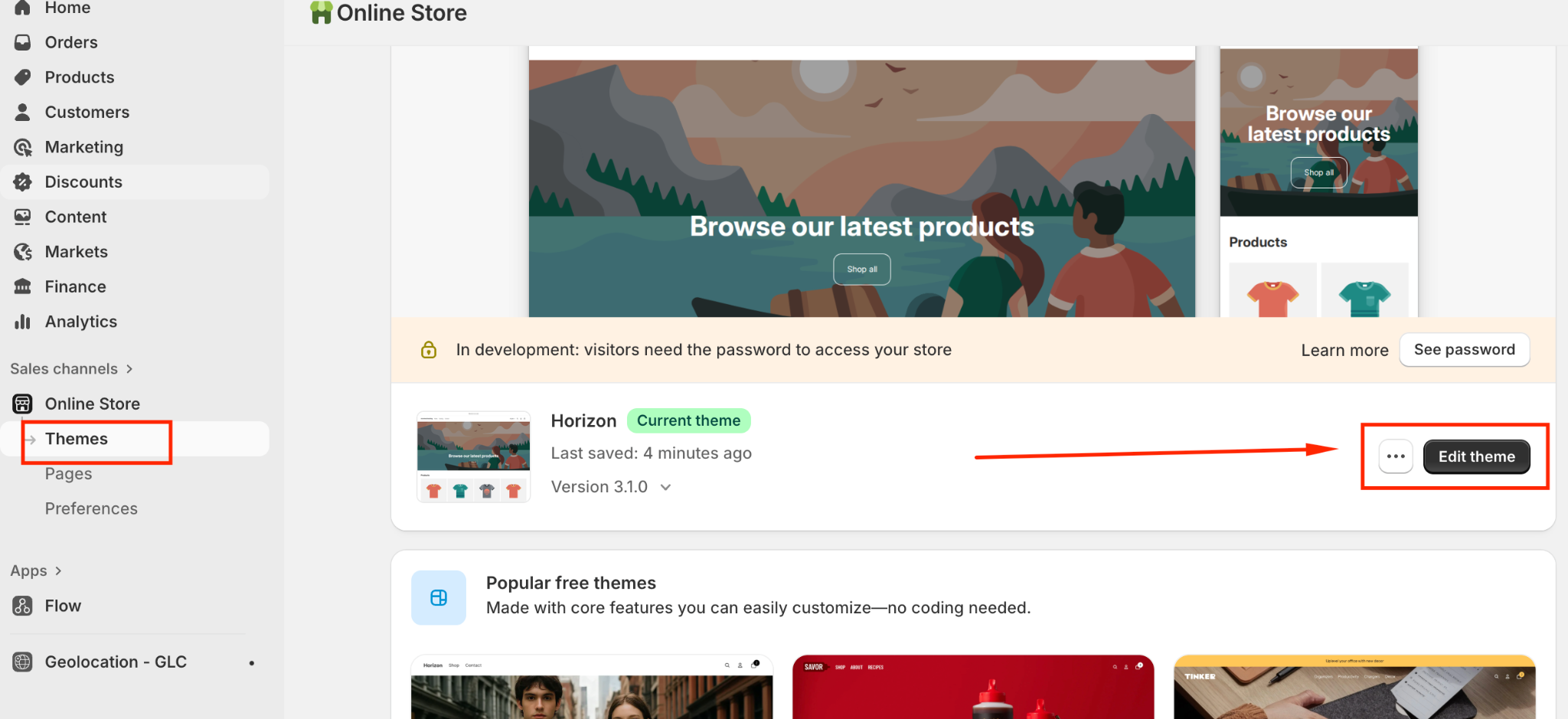
Step 1: Open Themes
From your "Shopify admin", navigate to "Online Store" → "Edit Themes"
Step 2: Customize your theme
Find your active theme and click "Customize"
Step 3: Open App embeds
Click the "App embeds" tab
Step 4: Enable Gelacy
Toggle ON the "Gelacy" app embed
Step 5: Save changes
Click Save
If you need further guidance or have any questions, don't hesitate to reach out to our support team through email us at [email protected]