Improve translation with AI
Improve translation with AI generates a new translation for a product with OpenAI GPT or Deepseek, then saves it to Shopify as a manual translation that you can review and edit.
- Improve translation with AI is available only in the Product resource of Manage translation.
- It translates one product at a time. Bulk translation isn't supported.
- For other content, such as collections, pages, blog posts, or theme content, edit the translation manually. See Edit translations.
I. AI Translation Uses
Improve translation with AI isn't available on every plan, and each plan includes a set number of AI translation uses per month. To see what your plan includes, go to Pricing in GLC.
- Each field translated by AI, such as a product title or description, counts as one use.
- Translating the same field again counts as another use.
- Your allowance resets on the first day of each month. You can see your remaining uses at the top of the Product resource in Manage translation.
If you reach your limit, you can use the feature again after your monthly reset or after upgrading. Your existing translations are kept, and you can still edit them manually. To compare plans, see New GLC Plans and Free Loyalty Changes.
II. How to Translate a Product with AI
Step 1: Open the Product resource
Go to Language and click Manage translation next to the target language. Open Product, then find the product you want to translate.
Step 2: Choose your AI provider
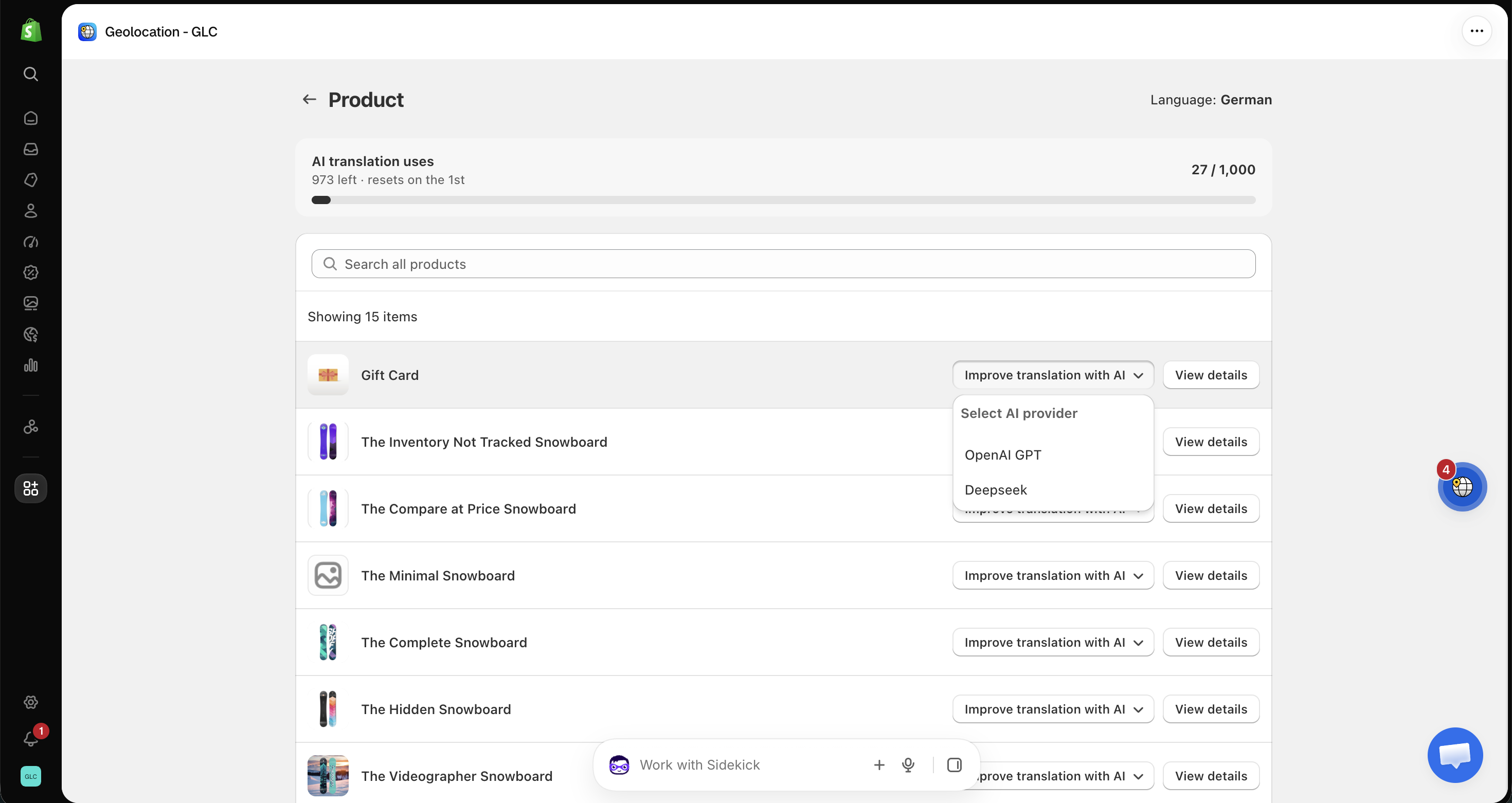
Click Improve translation with AI next to the product, then select OpenAI GPT or Deepseek.
You can also click View details to open the product, then use the Improve translation with AI button at the top of the page.
Step 3: Confirm the translation
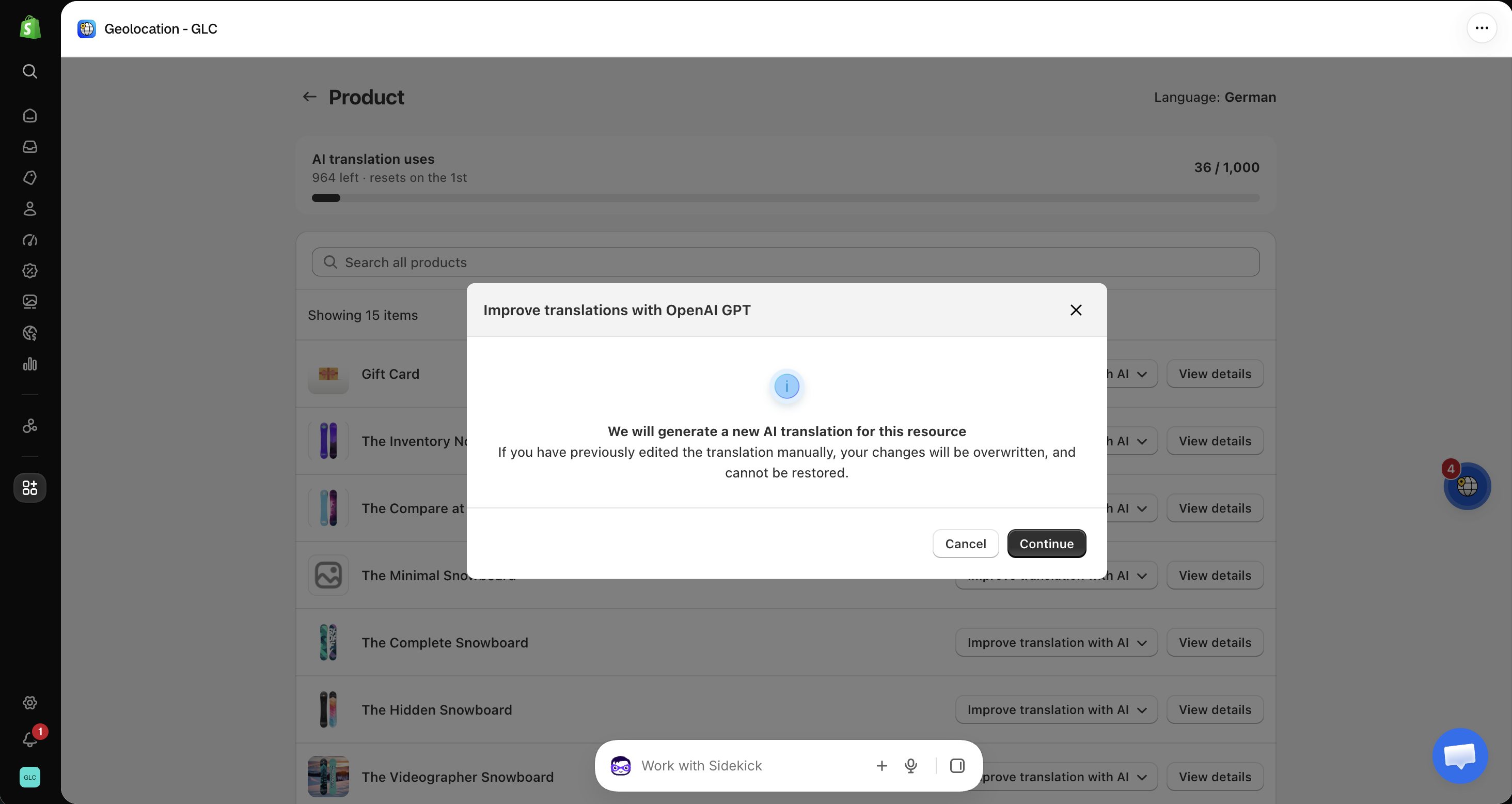
If you've already edited this product's translation manually, the new translation will overwrite those edits. Click Continue to generate the new translation.
Step 4: Wait for the translation to complete
The translation usually takes a few moments. Once it starts, you can't cancel it.
Step 5: Review and save
The new translation appears in the Target language fields, and GLC updates your remaining AI translation uses. Review the text, make any adjustments, and click Save.
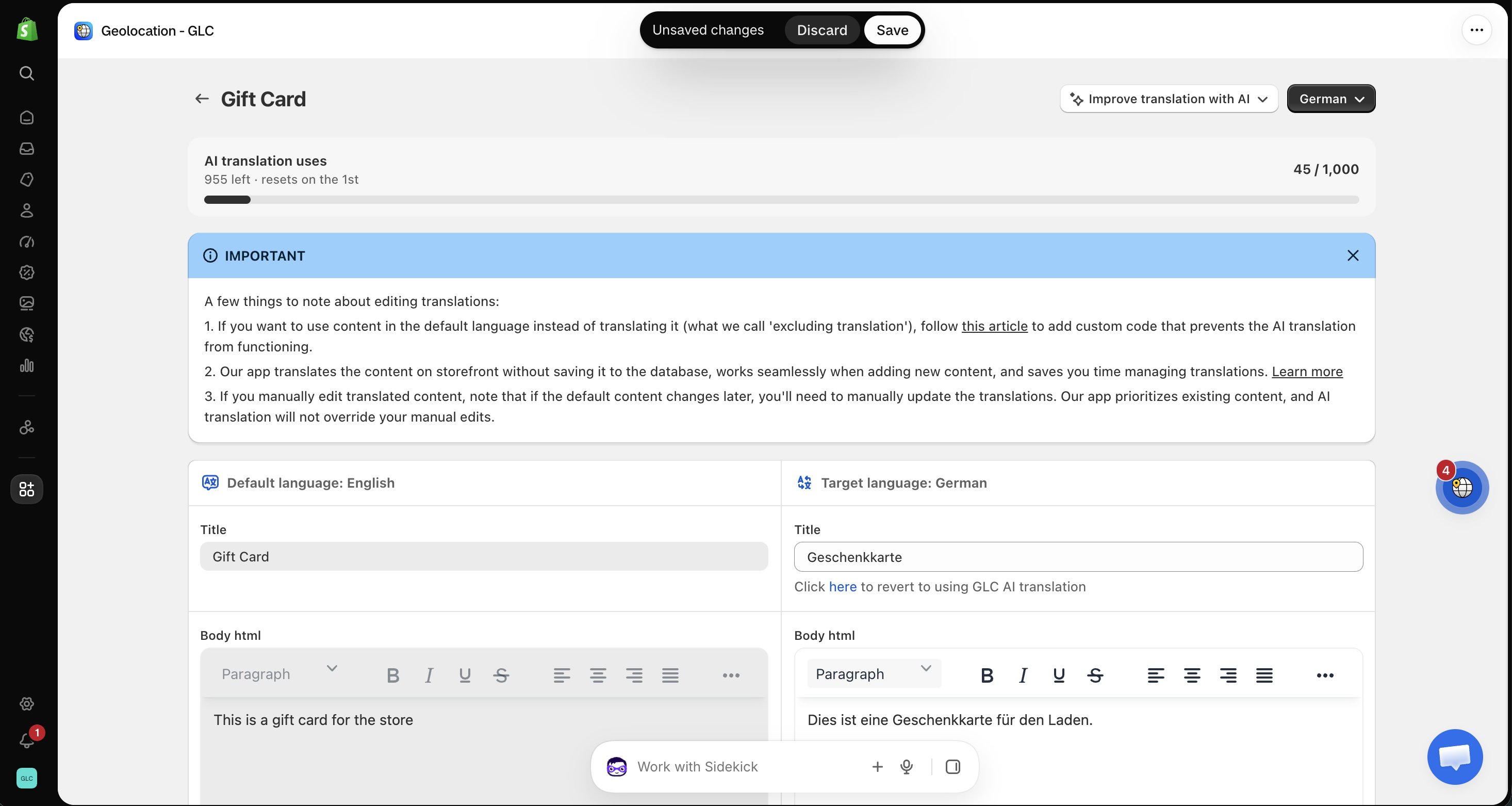
To return to GLC's automatic translation for a field, click here in the message Click here to revert to using GLC AI translation below that field.
Repeat these steps for each product and each target language you want to translate.
III. Tips for Better Results
- Add brand names and key terms to your glossary before translating. See Set up the Glossary.
- AI translation preserves the HTML formatting of product descriptions.
- To keep specific content untranslated on your storefront, see Exclude selected content from Auto translation.
If you have questions about translating your products with AI, or a translation doesn't look the way you expected, email us at [email protected] with the product name and target language. We'll take a look for you.