Tax or shipping text still appears in another language
If a notice such as “Tax included” or “Shipping calculated at checkout” still appears after you switch languages, your theme may have separate wording saved for that language.
Clear the wording in your theme’s locale file
If the notice comes from your theme’s locale file, you can clear the translated value for the affected language. Duplicate your theme first so you can test the change in a preview.
- In your Shopify admin, go to Online Store → Themes.
- Open ⋯ → Edit code for the duplicate theme.
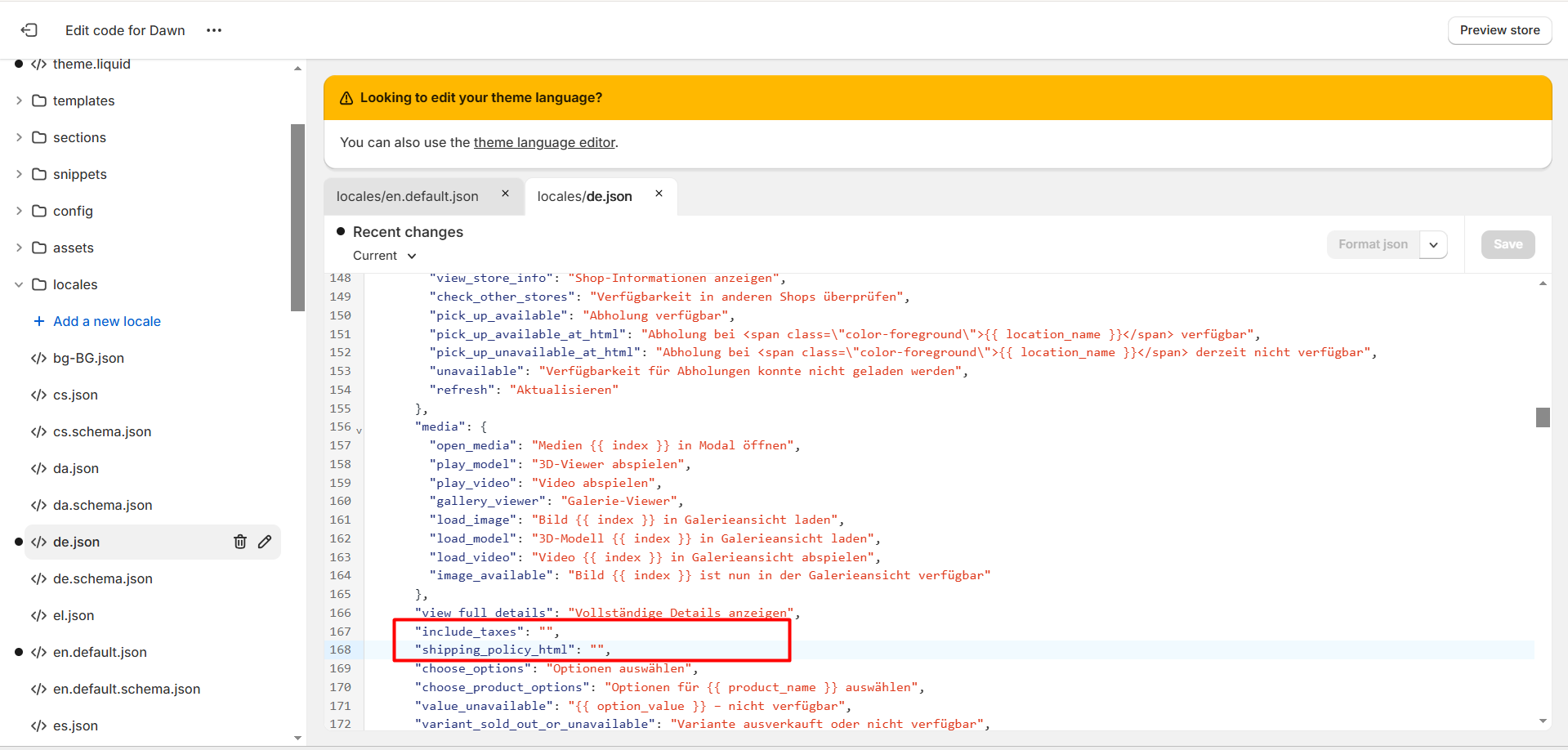
- Open the locales folder and select the JSON file for the affected language, such as
de.jsonfor German. - Search for the exact text shown on your storefront. Some themes use keys such as
include_taxesorshipping_policy_html. The key names vary by theme. - Replace the translated value with an empty string (
""). Keep the key and any comma after the value. For example, change"include_taxes": "Inklusive Steuern"to"include_taxes": "". - Click Save, then preview the affected page in the target language. If the notice is gone, you can apply the same change to your live theme.
If the notice still appears
Check Language → Manage translation → Theme in GLC for a saved translation of the same wording. If the notice still appears after you clear the wording, the theme may display it through a separate setting or template.
Send the page URL, affected language, theme name, and exact text to [email protected]. We’ll help you find where the notice comes from.